
Appearance
5. Schedule maintenance
When you need this: the well pump needs its oil changed in March. The tank gets inspected next month. The generator gets run on the first Monday. Put it on the calendar once, and Utilops reminds you and counts it overdue if it slips.
Steps
On the left side of the screen, click Asset Management, then click Maintenance Scheduler.
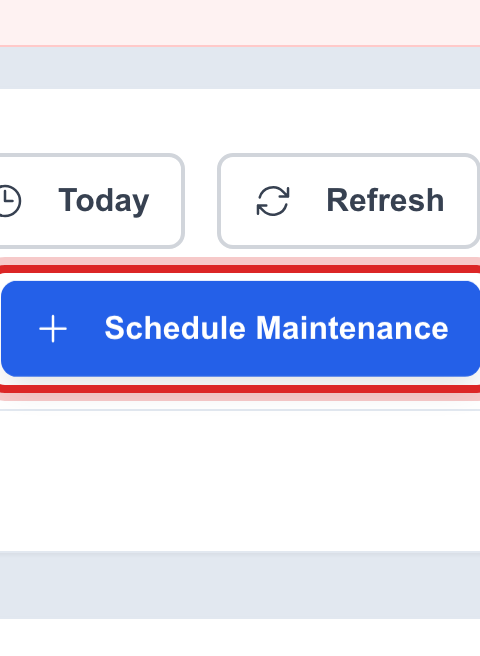
At the top right, click Schedule Maintenance. A window opens.
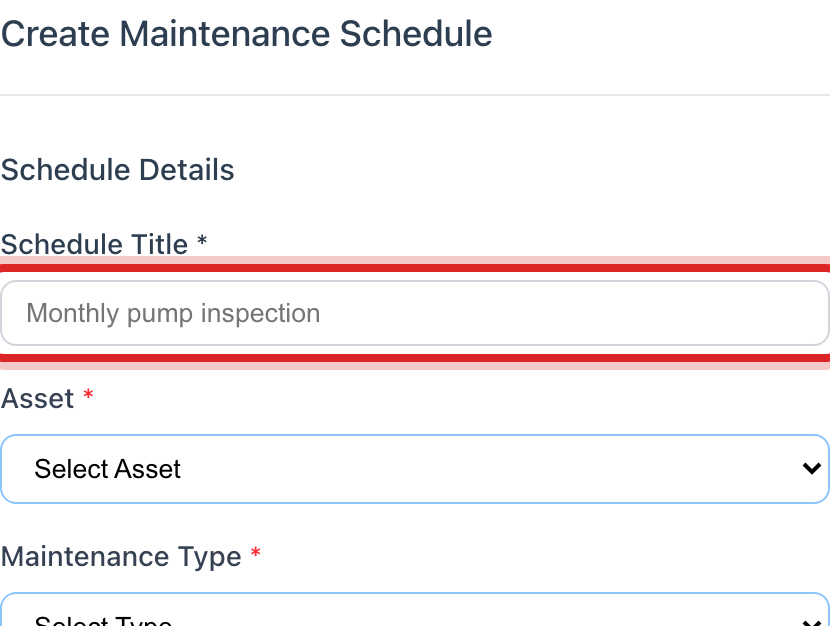
Type the Schedule Title, like Well 2 pump oil change.
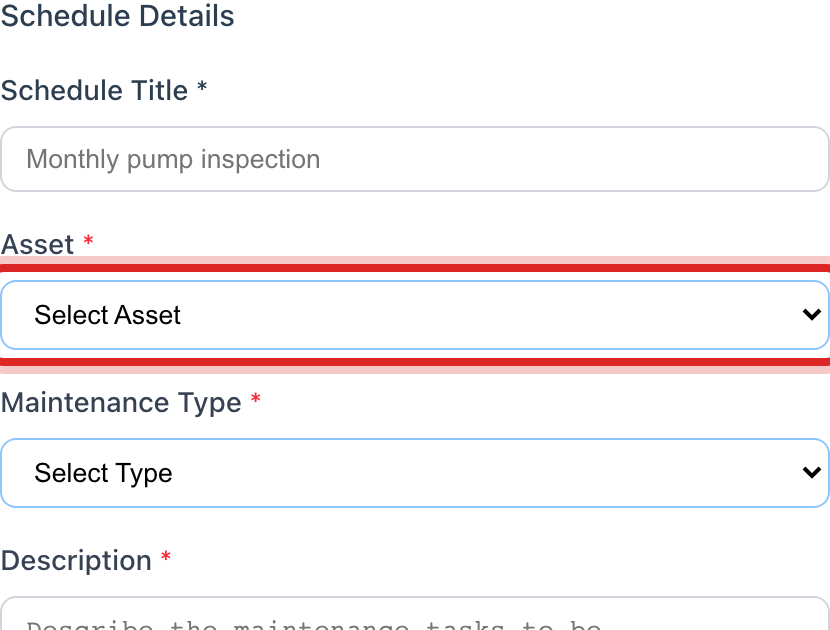
Pick the Asset it is for.
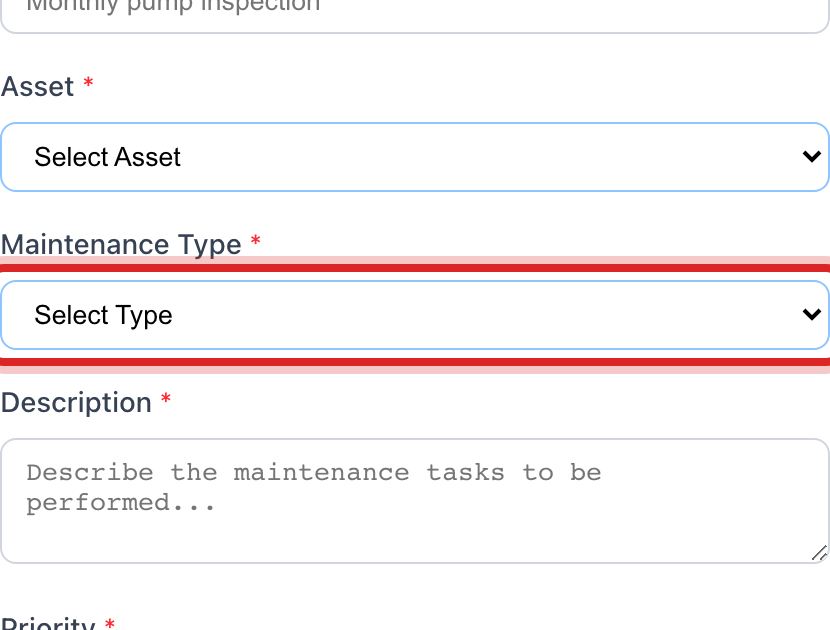
Pick the Maintenance Type. Inspection for a look over. Preventive Maintenance for oil, grease and filters. Part Replacement for a part.
In Description, say what to do, so the person doing it knows.
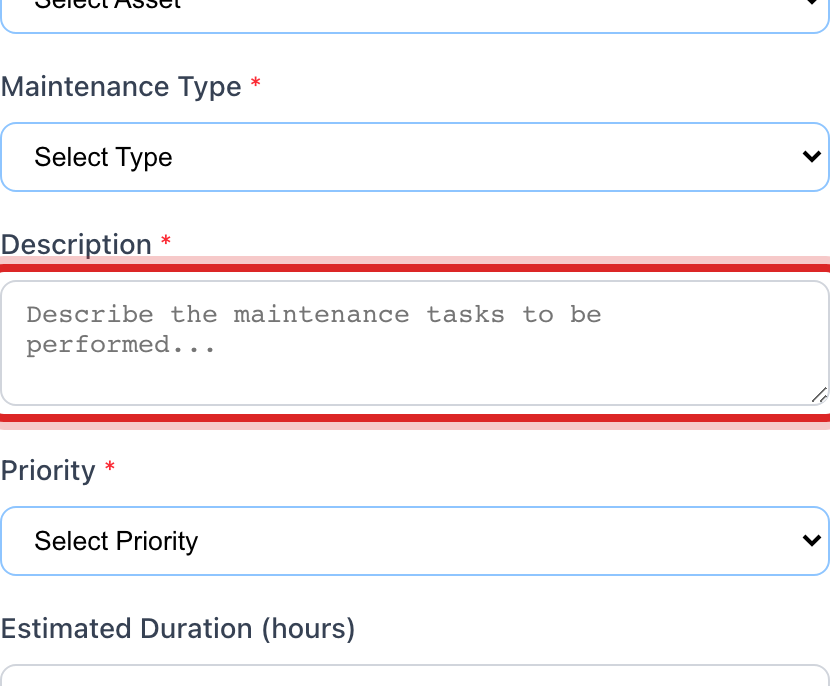
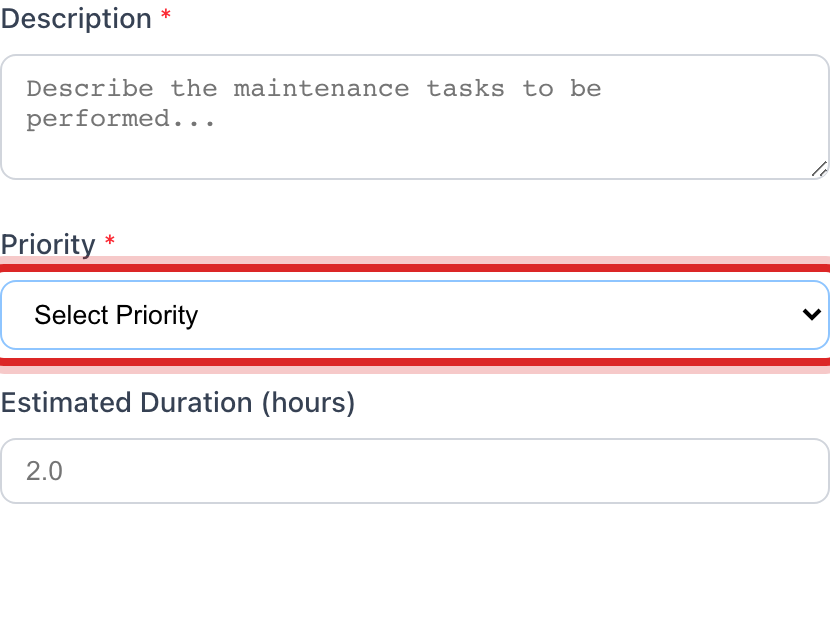
Pick the Priority. Medium for most. Critical for something that stops the water if it fails.
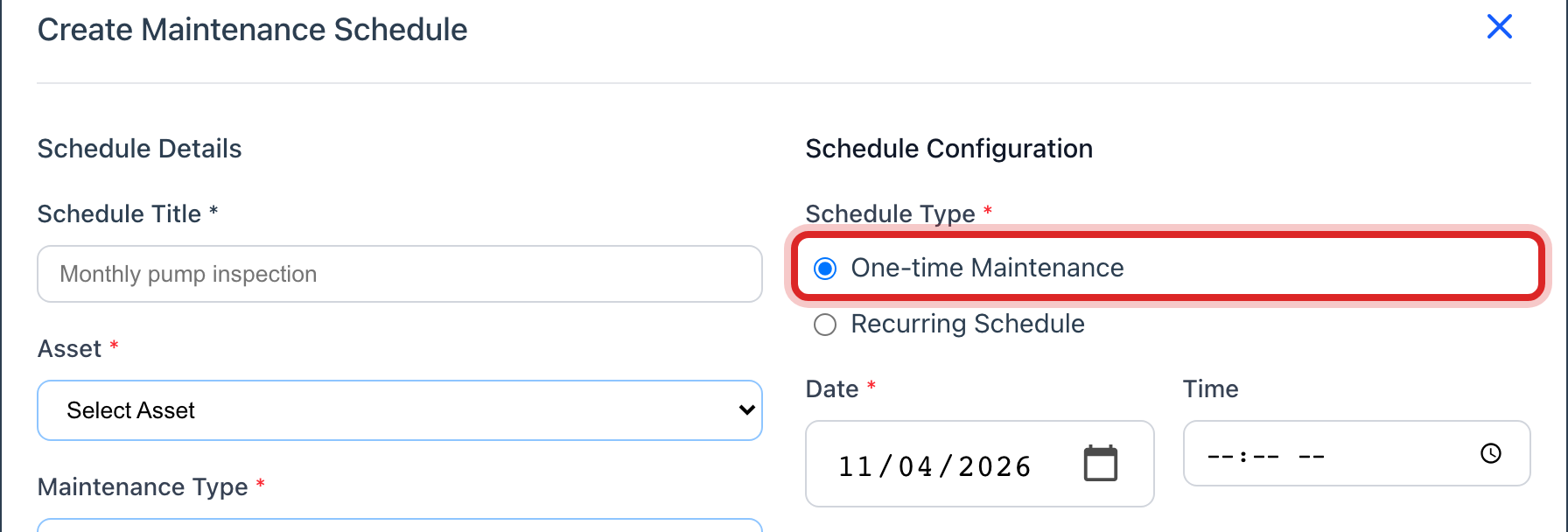
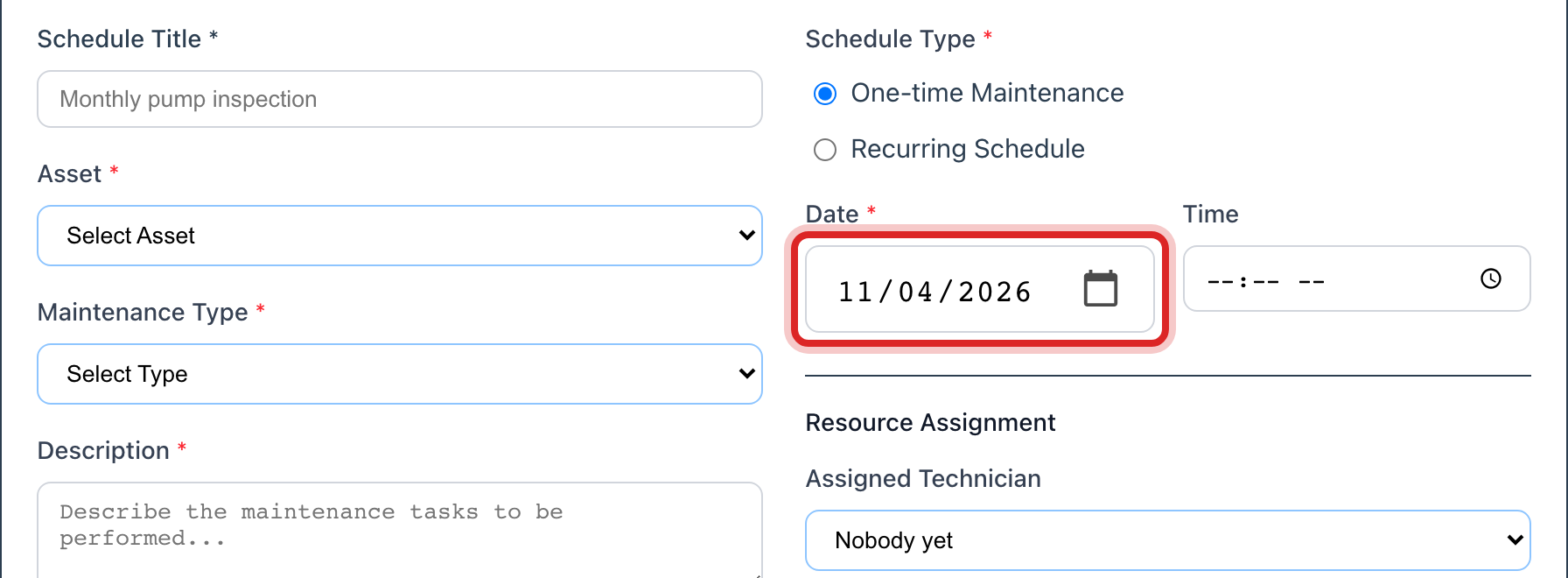
Leave One-time Maintenance picked and set the Date.
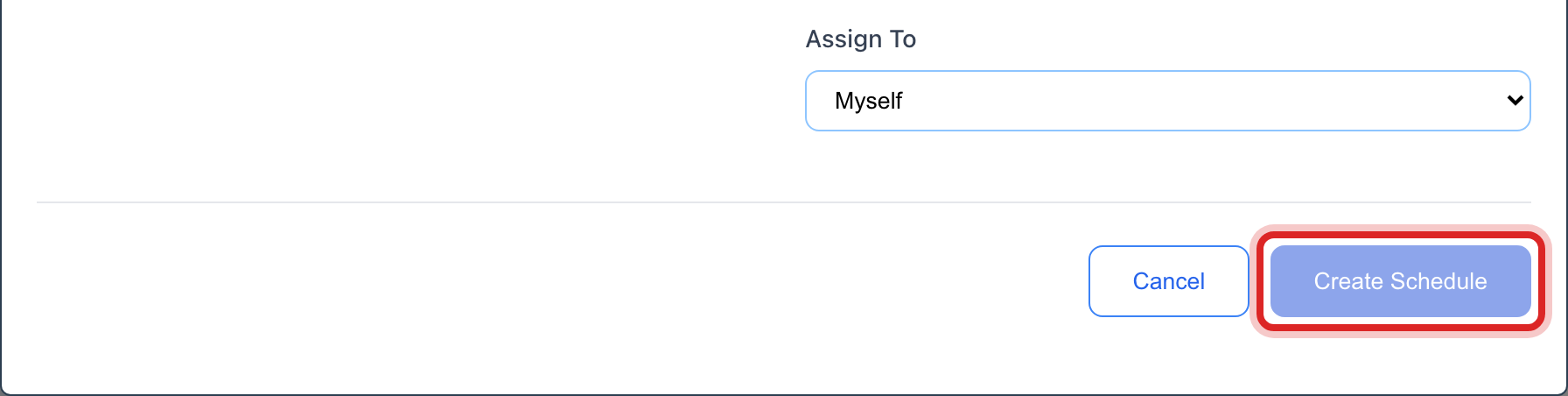
Click the blue Create Schedule button at the bottom.
Made a mistake? Click Undo on the green message that appears, or open Show me how at the top and pick Undo a mistake.
You are done when
The new job is on the calendar on that day and in the list on the right. Scheduled Tasks at the top goes up by one.
If something looks different
It happens every month, not once. Pick Recurring Schedule instead of One-time. Then pick the Recurrence Pattern and the Start Date. Utilops makes the next one each time you mark one done.
You want a certain person to do it. Pick them in Assigned Technician. Leave it as Nobody yet if anyone can.
The Asset list is empty. Add the equipment first, lesson 2.
You do not see Schedule Maintenance. Only staff who may manage assets can add schedules. Ask your administrator.