
Appearance
4. Pause a scheduled report
When you need this: the board skips July. The person who got the report is on leave. You do not want to delete the schedule and build it again later. Pause it, and resume it when you are ready.
Steps
On the left side of the screen, click Reports & Analytics, then click Report Scheduler.
Scroll to Scheduled Reports. Each row is one schedule. The row says how often it runs and when it runs next.
Find the row. Click its Pause button.
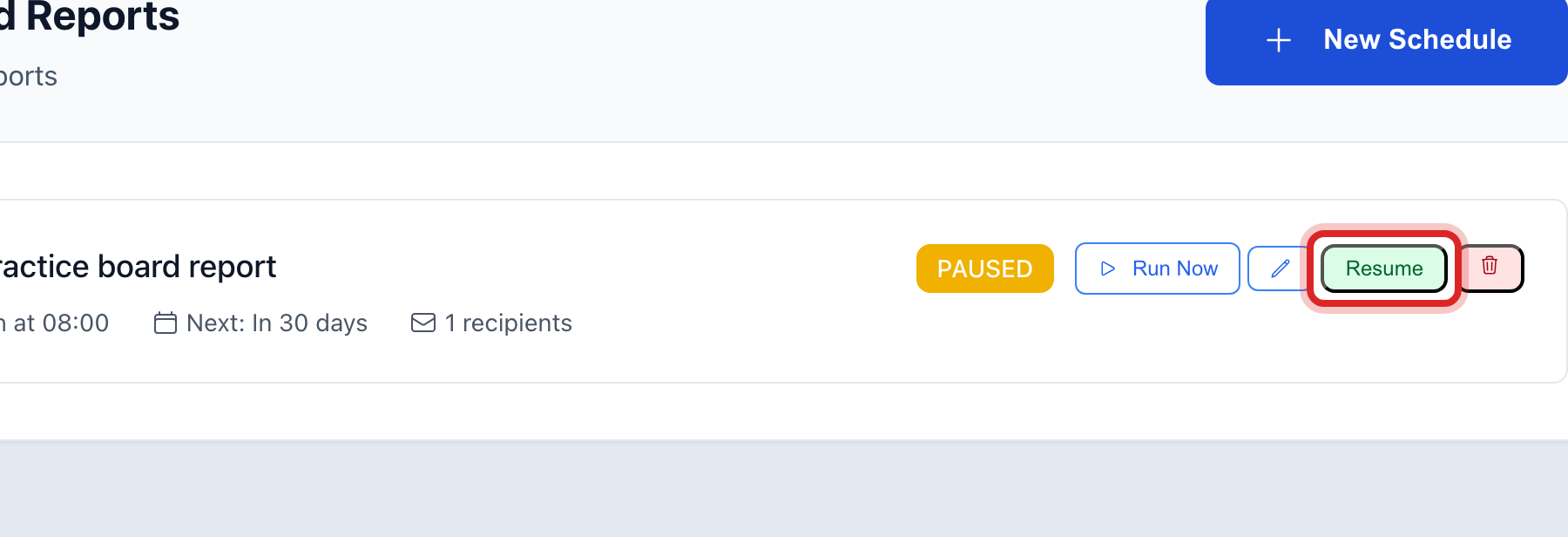
The button now reads Resume. Click it when you want the report to start again.
Made a mistake? Click Undo on the green message that appears, or open Show me how at the top and pick Undo a mistake.
You are done when
The row's status changes from Active to paused. Nothing is emailed until you click Resume.
If something looks different
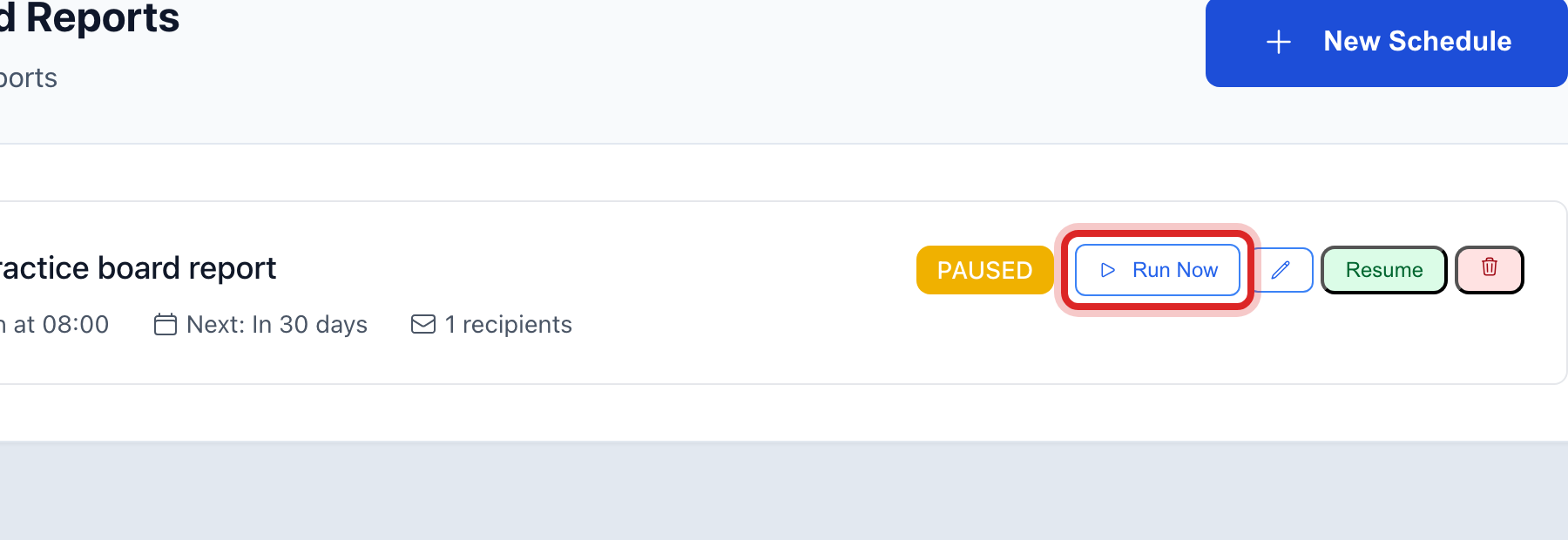
You want it once, right now. Click Run Now on the row. The report is built and emailed today. The schedule is not changed.
You cannot find the row. Use the Status and Frequency lists under Schedule Filters, or click Clear Filters to see every schedule.
You want it gone for good. Click the Edit schedule button on the row, then Delete in the window. It waits in the Recycle Bin for 30 days in case you change your mind.