
Appearance
3. Export a list to a spreadsheet
When you need this: the auditor wants every payment from last year. The engineer wants a list of meters. The mayor wants the customer count by street. A spreadsheet answers questions a report does not. Pull the list out and sort it however you like.
Steps
On the left side of the screen, click Reports & Analytics, then click Data Export.
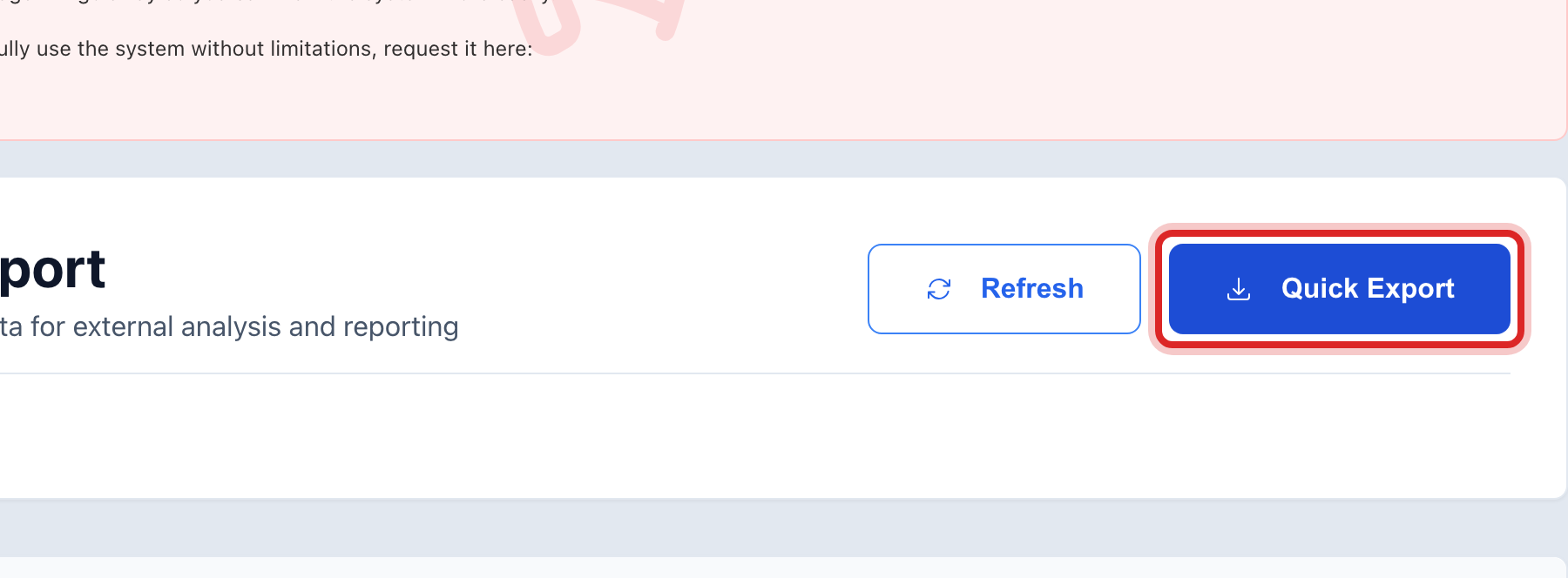
Click the blue Quick Export button at the top.
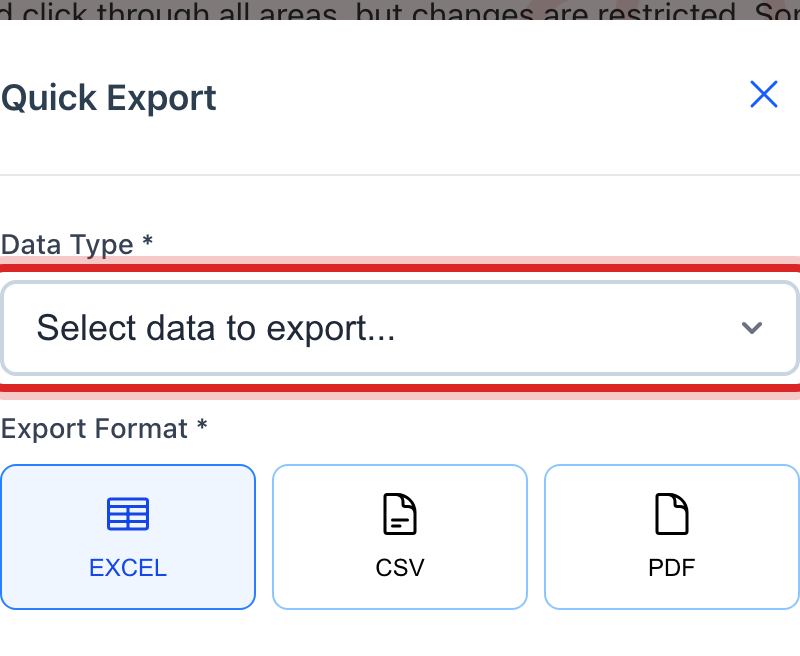
A window opens. Click the Data Type list and pick what you want, like Billing Records or Customer Data.
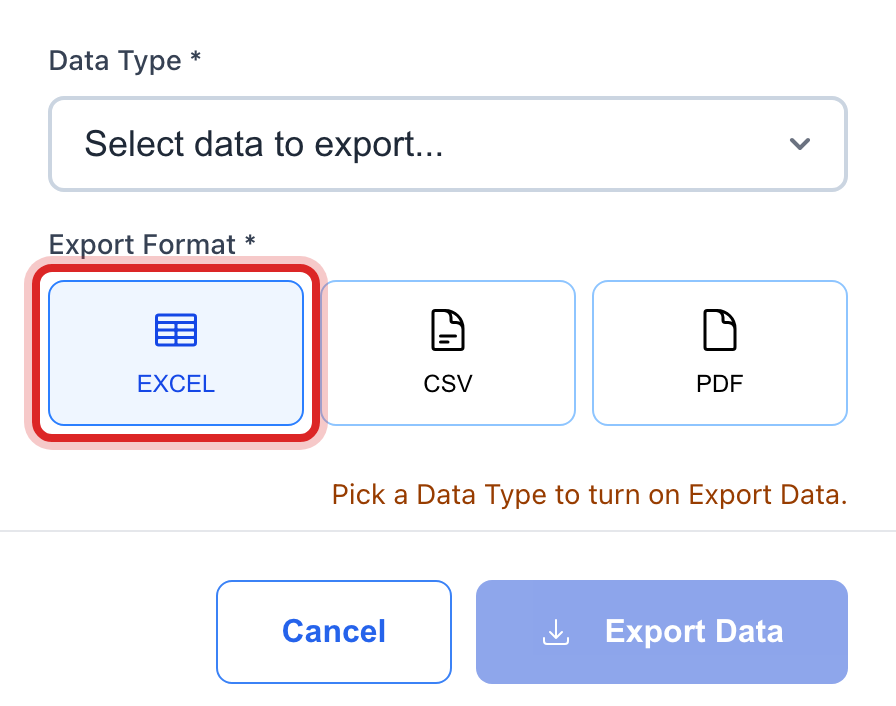
Under Export Format, click EXCEL. That opens in any spreadsheet program. CSV is a plain file for other software. PDF is for printing.
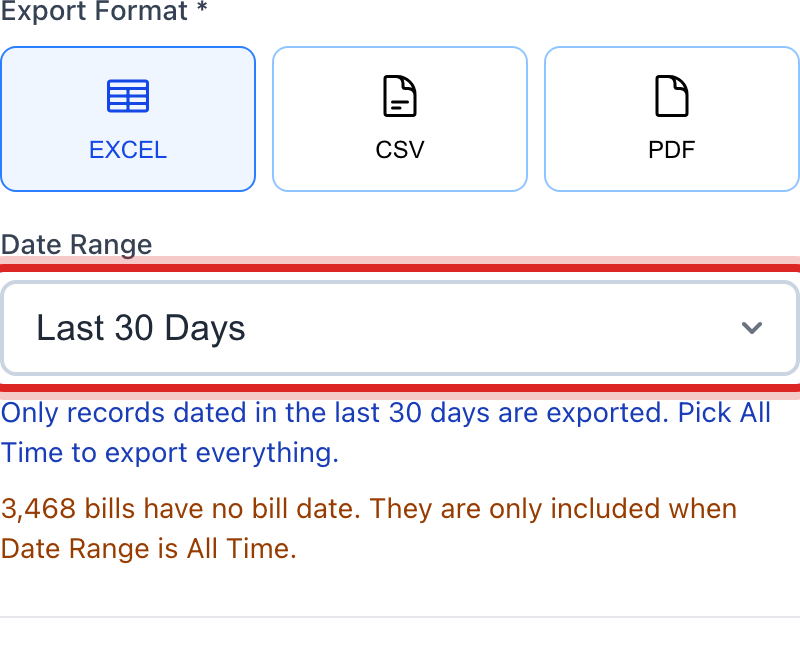
Click the Date Range list. Pick how far back to go, or All Time for everything.
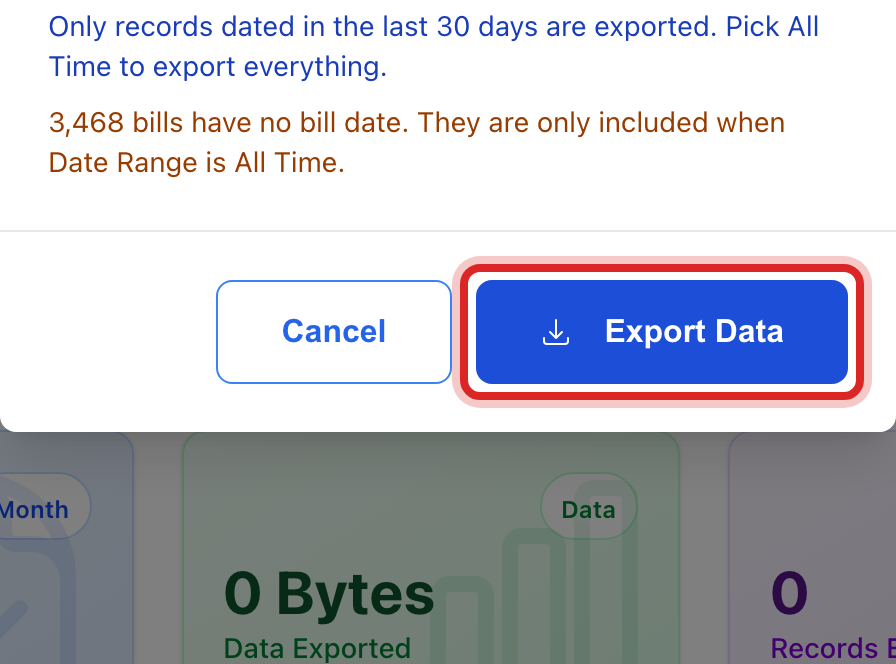
Click the blue Export Data button. The file goes to your computer's Downloads folder.
You are done when
The export shows under Recent Exports with the date and how many rows it holds. The file is in your Downloads folder, named for what you picked. Open it with your spreadsheet program.
If something looks different
The Export Data button is faded. The line above it says why. Pick a Data Type first.
You want only some columns. Use the cards under Export Templates instead. Click Customize on one, tick the fields you want, and click Export Data.
You need the same file again. Under Recent Exports, click the download button on its row. You do not have to build it twice.
Your utility has gas too. A Service list appears in the window. Pick Water or Natural Gas.
A date list shows a warning about bills with no date. Those are old imported bills. They are left out of a dated range. Pick All Time to include them.