
Appearance
2. Have a report emailed every month
When you need this: the board chair wants the monthly report in her inbox the first of every month. The manager wants the operations numbers every Monday. Set it up once. Utilops builds the report and emails it on the day, and you never have to remember.
Steps
On the left side of the screen, click Reports & Analytics, then click Report Scheduler.
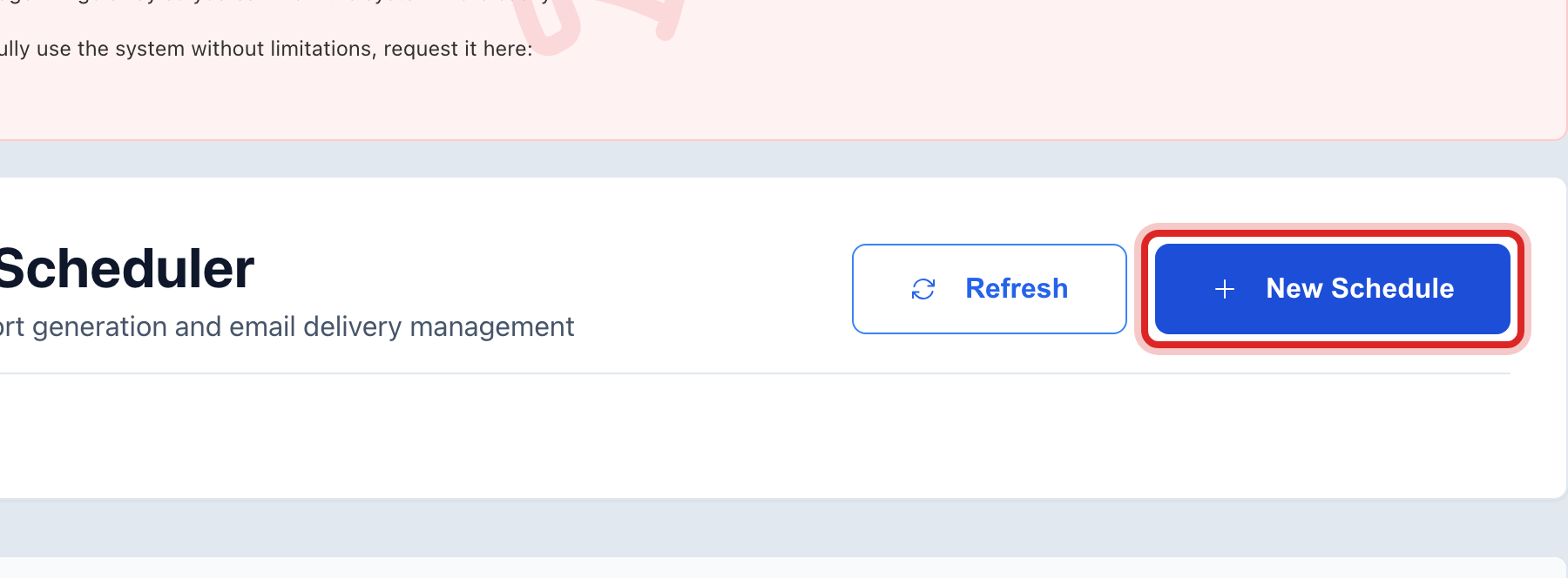
Click the blue New Schedule button at the top.
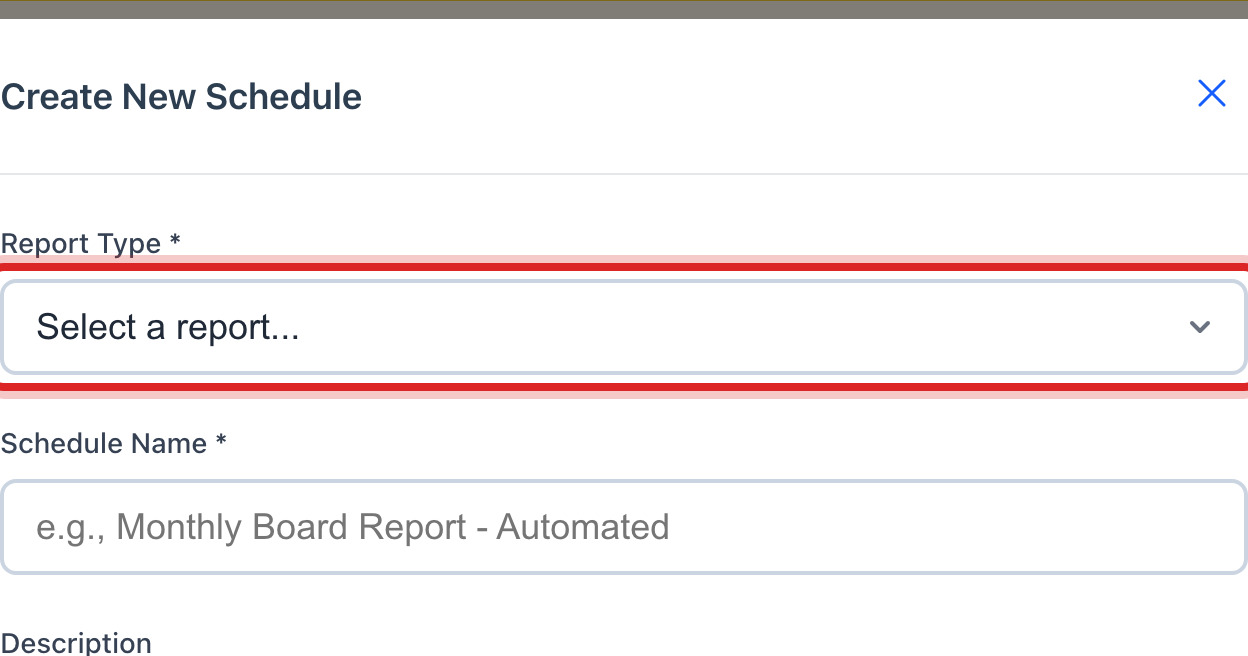
A window opens. Click the Report Type list and pick the report, like Monthly Board Report.
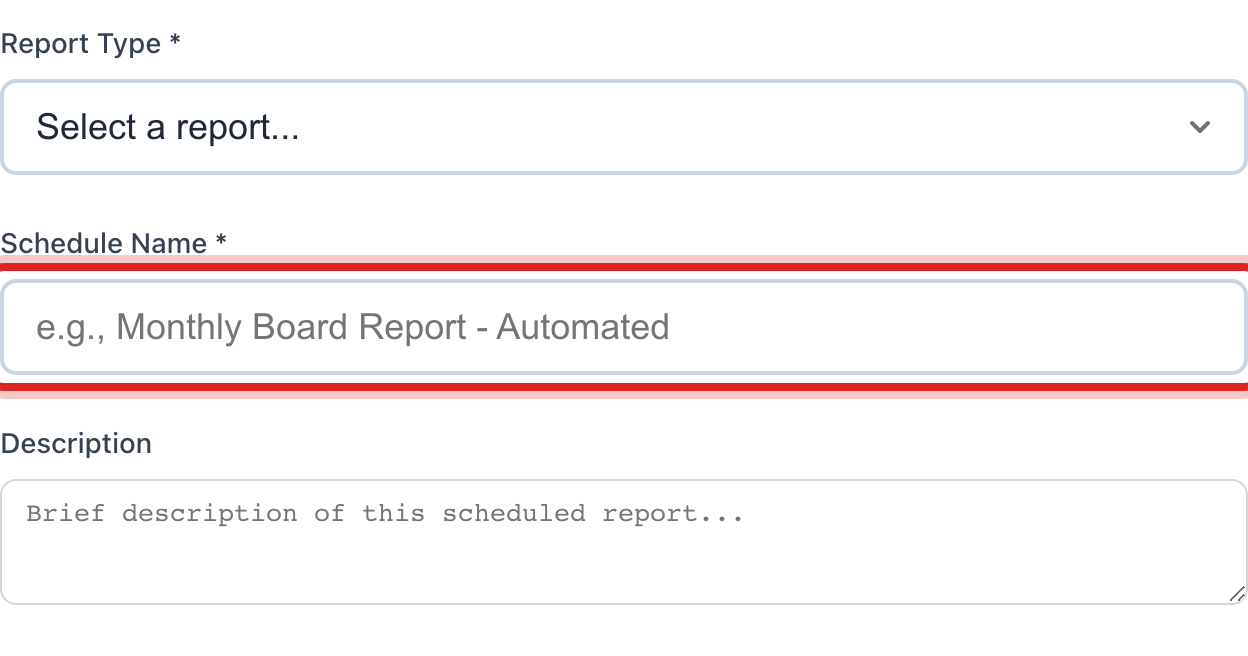
Click in the Schedule Name box. Type a name you will know later, like "Board report, first of the month".
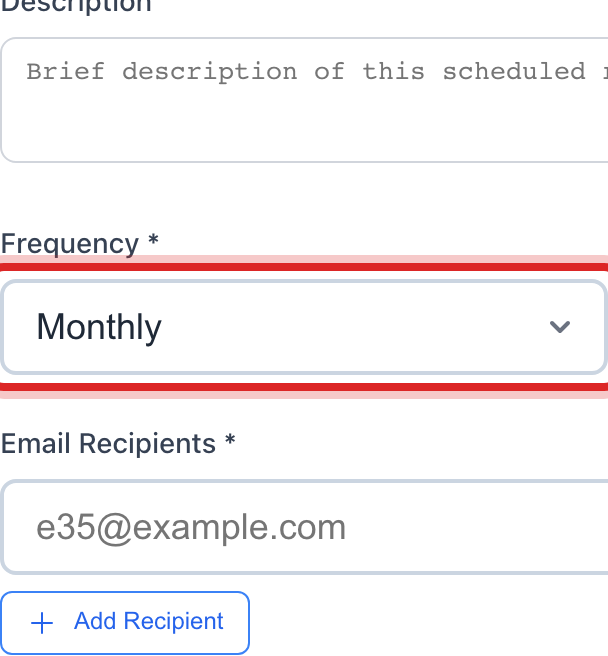
Click the Frequency list and pick Monthly. Then pick a Time of day. Early morning is good, so it is waiting when people arrive.
Under Email Recipients, click in the box and type the first email address. Need another? Click Add Recipient and type it in the new box.
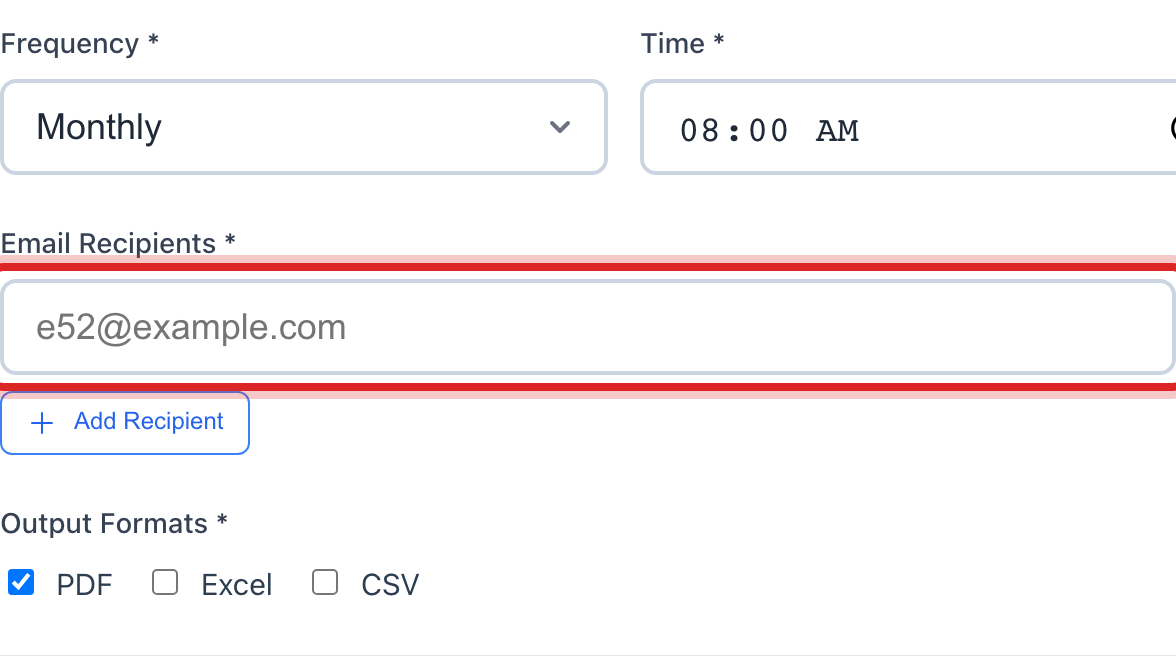
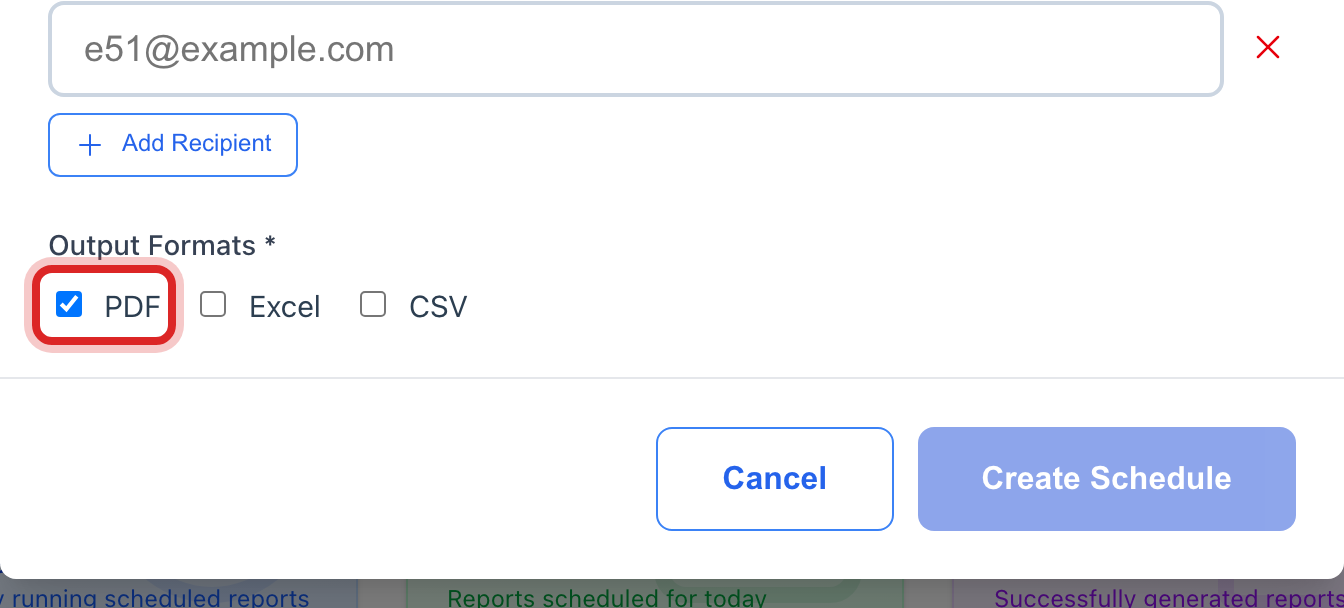
Under Output Formats, tick PDF. That is the one most people can open.
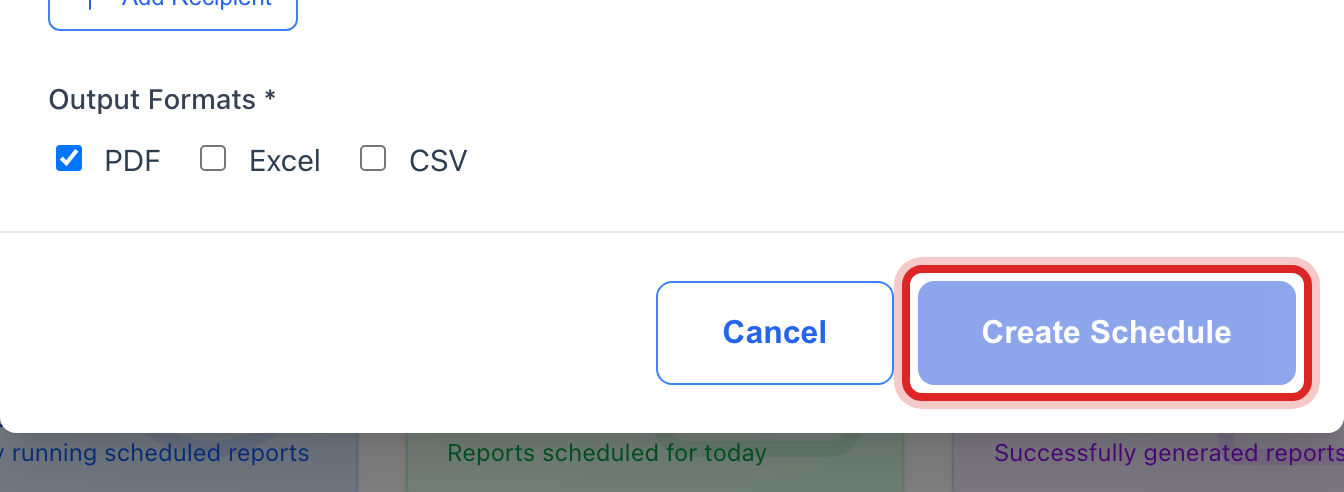
Click the blue Create Schedule button.
Made a mistake? Click Undo on the green message that appears, or open Show me how at the top and pick Undo a mistake.
You are done when
The schedule shows under Scheduled Reports with the status Active and the date it runs next. The calendar at the top of the page marks the day.
If something looks different
You want to see it now, not next month. Click Run Now on its row. The report is built and emailed today, and the schedule keeps its date.
The board changed. Click the Edit schedule button on the row. Change the email addresses and click Update Schedule.
Someone wants a spreadsheet instead. Tick Excel or CSV as well as PDF. Each person gets every format you tick.
The Create Schedule button is faded. Something above it is still empty. The report, the name, the time and at least one email address are all needed.