
Appearance
1. Run a report and print it
When you need this: the board wants the month's numbers. The state asks how many connections you have. The manager wants to know how the work orders went. Each report is one card. Pick it, click once, and it is built from your records as they are right now.
Steps
On the left side of the screen, click Reports & Analytics, then click Basic Reports.
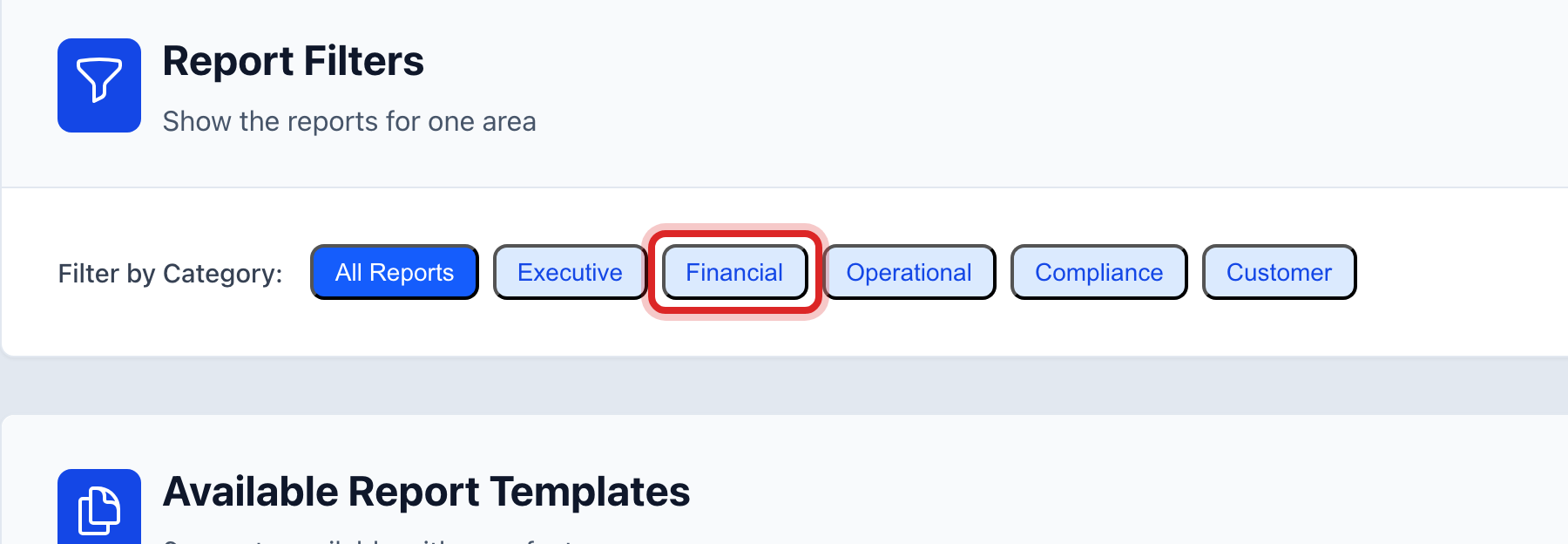
In the Report Filters card, click a group button to shorten the list. Click Financial for the money reports. All Reports shows every card.
Each card under Available Report Templates is one report. The lines under the name say what is in it.
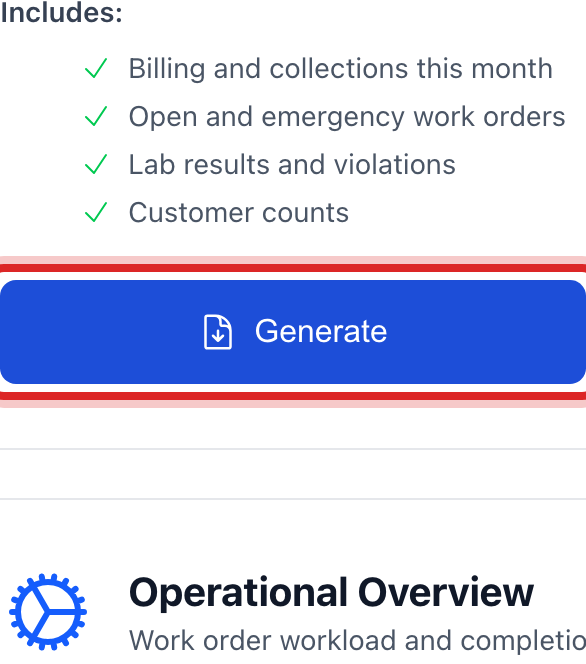
Click the blue Generate button on the card you want. A box shows the steps as the report is built. Give it a few seconds.
The report opens on its own page. Read it. Click the blue Print button at the top to print it or save it as a PDF.
You are done when
The finished report is on the screen with your utility's name at the top. It is also listed under Recent Reports on the Basic Reports page, with a View button, so you can open it again later.
If something looks different
You are not sure what is in a report. Click the eye button next to Generate. A window lists what the report will include. Click Generate Report from there, or Close.
You want it every month without asking. Click the clock button next to Generate. It takes you to the scheduler with the report already picked. Lesson 2.
You want every report at once. Click Generate All Reports at the top of the page. It takes a minute.
A card you expect is missing. Reports only show for the parts of Utilops your utility uses. If Compliance is switched off, its reports are not listed.