
Appearance
6. Plan a meter reading route
When you need this: reading day is long because the reader zigzags across town. A route is a list of meters in a sensible driving order. Utilops picks the order for you from the map, and tells you how many miles it saves.
Steps
On the left side of the screen, click GIS Mapping, then click Route Optimization.
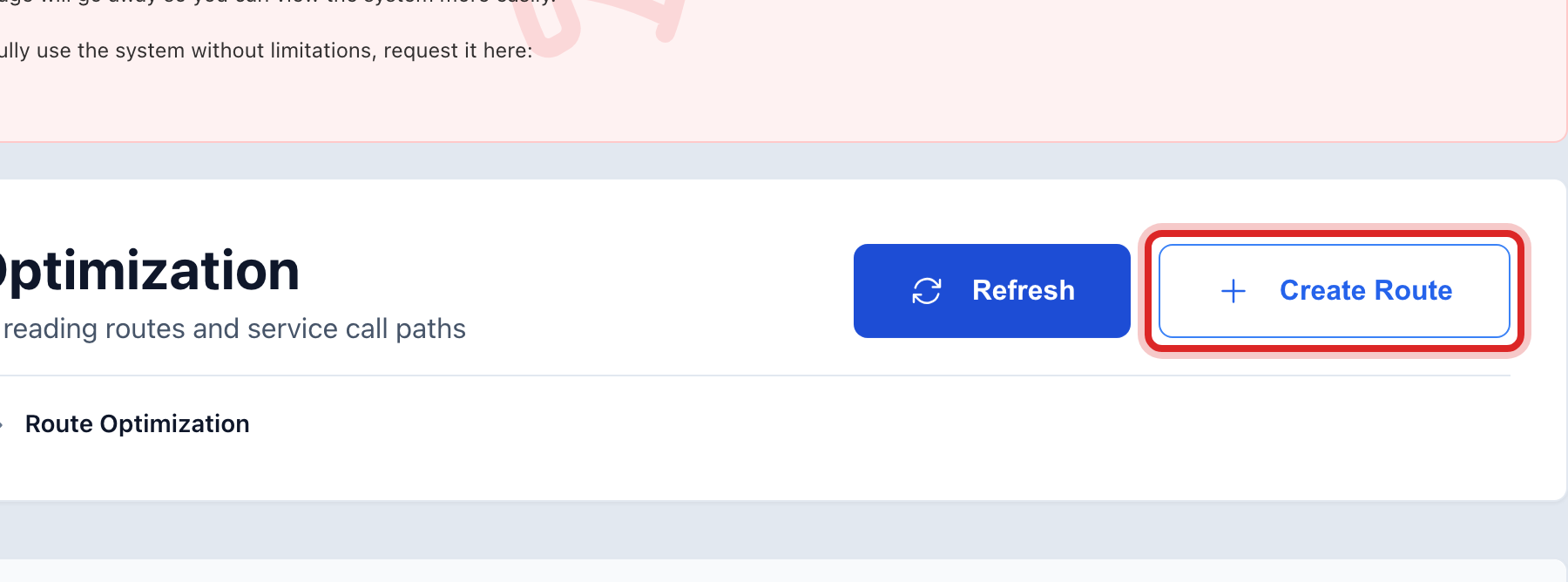
At the top right, click Create Route. A window opens with four steps across the top.
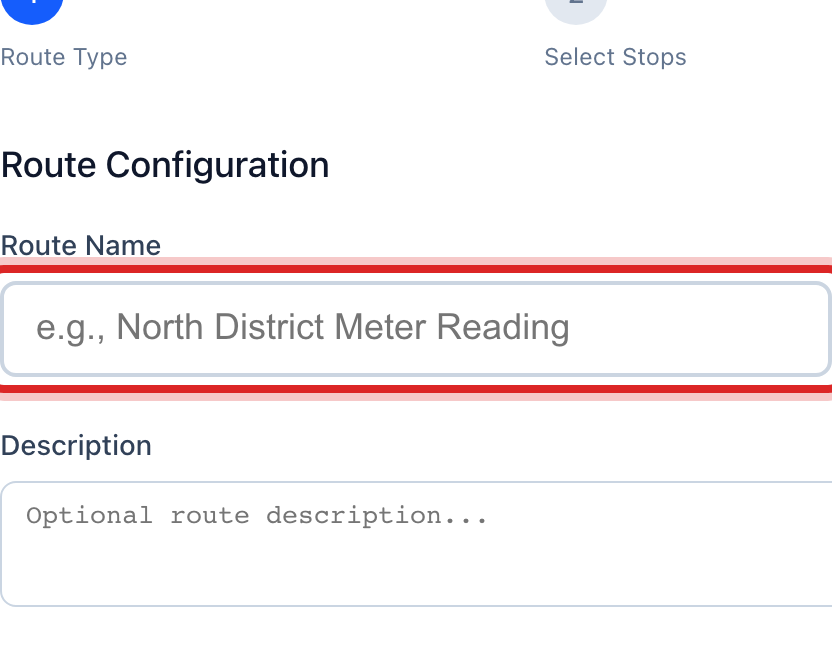
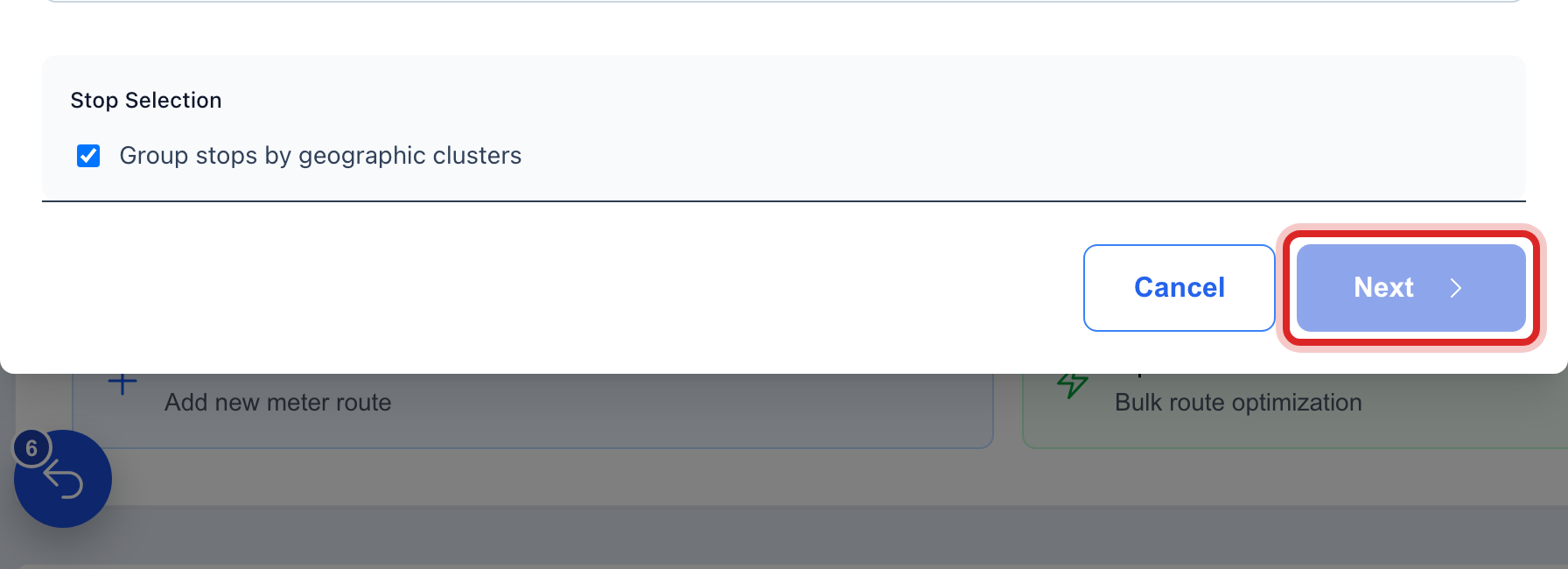
Type the Route Name, like North Loop. Leave Max Stops as it is. Click Next.
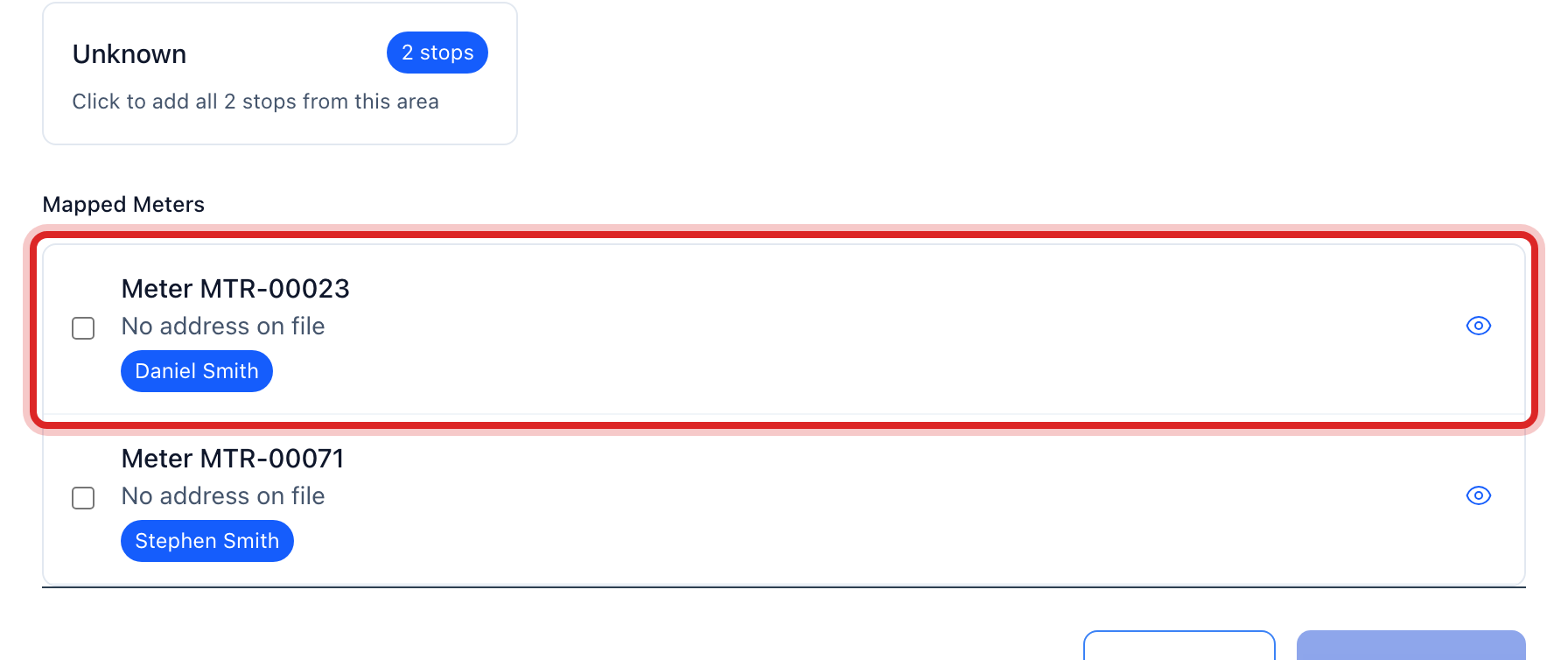
Under Mapped Meters, tick each meter that belongs on this route. Under Geographic Clusters, clicking one block adds every meter in that part of town at once. You need at least two. Click Next.
The Route Optimization Preview shows the stops in driving order on a map, with Total Distance and Efficiency Gain. Click Next to go on.
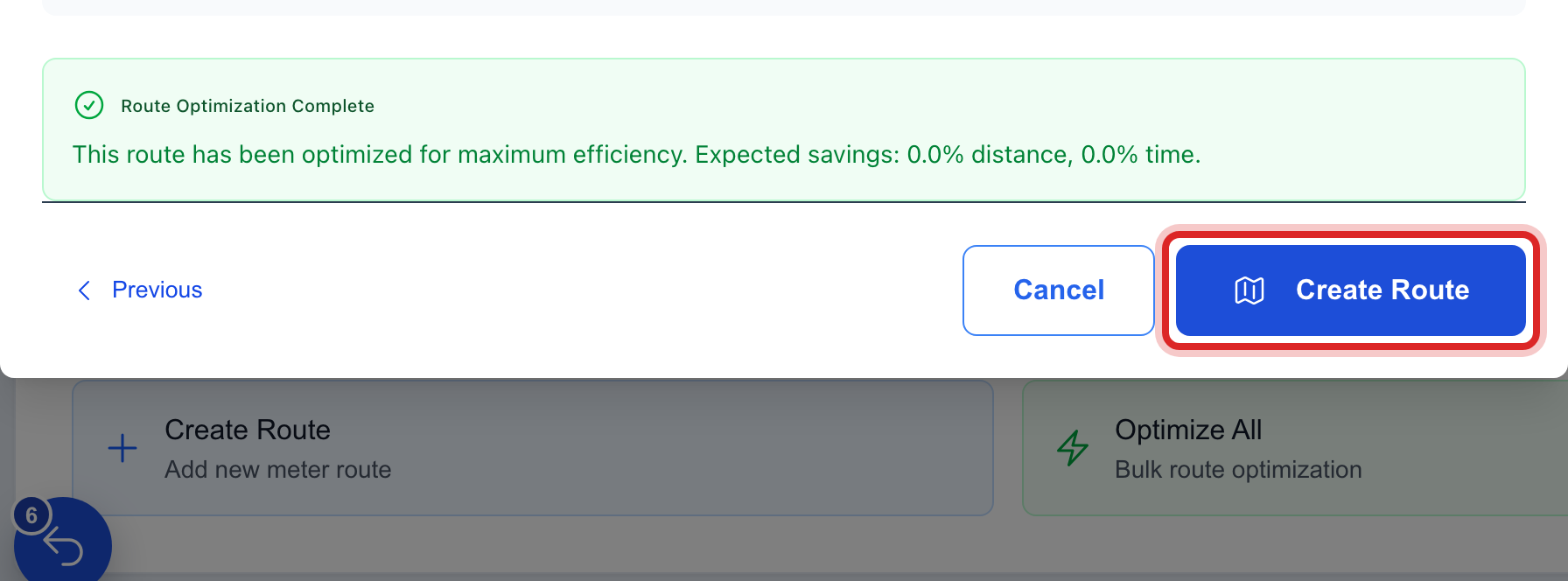
Read the Route Summary. Click Create Route.
Made a mistake? Click Undo on the green message that appears, or open Show me how at the top and pick Undo a mistake.
You are done when
A green message says the route was created with that many meters. The route is in the list under Route Management, and the reader sees it on reading day.
If something looks different
Mapped Meters is empty. Only meters with a map point can go on a route. Place your customers on the map first, lesson 2.
A meter is missing from the list. It is already on another route. Tick Show meters on other routes at the top of the step to see it.
Next is faded. On the first step the name is blank. On the second you have fewer than two meters ticked.
A route you made last year has grown. Click it in the list and click Optimize. Utilops puts the stops back in the best order and says how many miles it saved.