
Appearance
3. Fix an address that would not place
When you need this: a customer has no pin on the map. Their address came in with a typo, or the house number is missing, or the map does not know the road. You find the account, fix the address, and try again.
Steps
On the left side of the screen, click GIS Mapping, then click Address Validation.
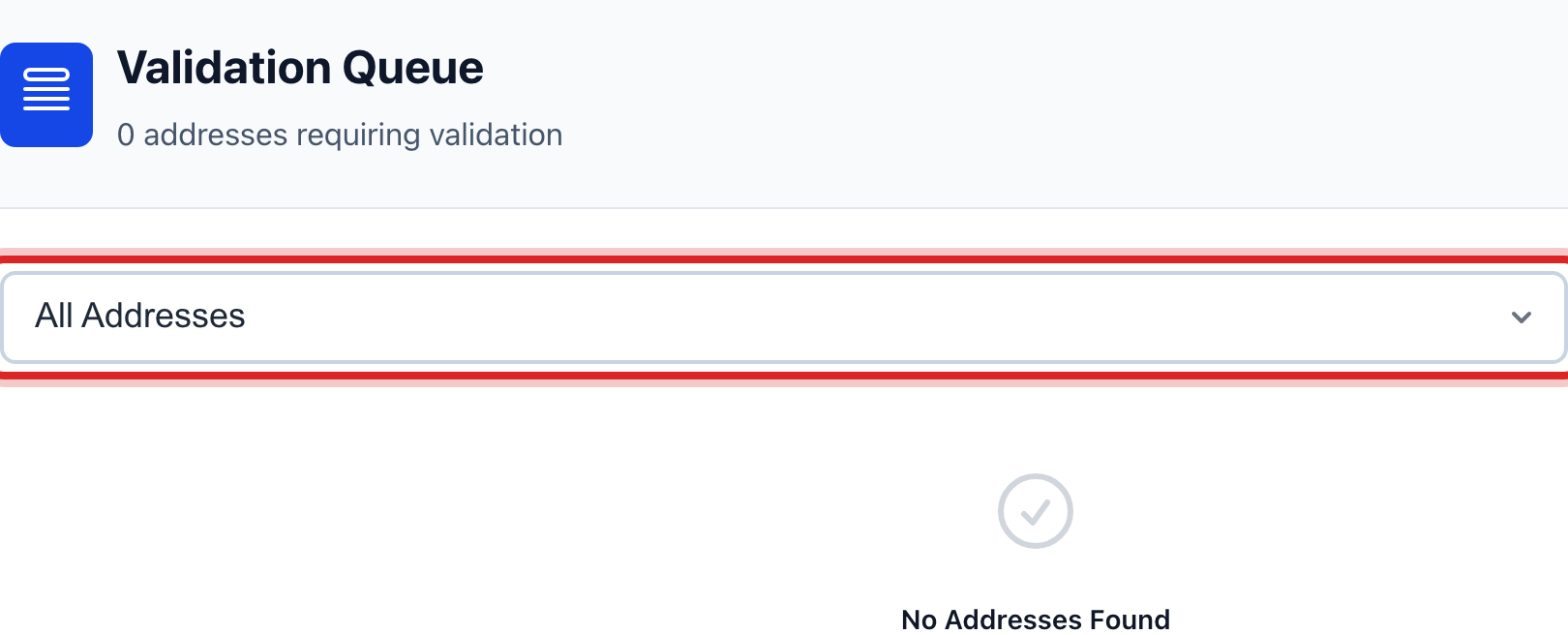
Scroll down to Validation Queue. In the list box at the top right of it, pick Validation Errors. Only the addresses that failed stay on the screen.
Click an address card. It turns blue.
Read Address Validation Details below. The left box is the address as it was typed in. The right box is where the map put it, or Pending validation if it could not.
If the typed address looks right, click the blue button at the top right of the details, next to View Customer. Utilops tries that one address again.
If the typed address looks wrong, click View Customer. The account opens. Fix the street, city or ZIP code there and save. Then come back here and do steps 2 to 5 again.
Made a mistake? Click Undo on the green message that appears, or open Show me how at the top and pick Undo a mistake.
You are done when
A green message says the address was placed. The card drops out of the Validation Errors list, and the customer has a pin on the map.
If something looks different
The queue is empty. Nothing failed. Pick All Addresses in the list box to see everyone.
The card shows a percent. That is how sure the map is. Low Confidence in the list box shows the ones under doubt, so you can check the pin is on the right lot.
There is no View Customer button. That address is on a piece of equipment, not a customer. Fix it under Asset Management, then Inventory.
You cannot click the blue button. Only staff who may manage maps can run this. Ask your administrator.