
Appearance
1. Show your equipment on the map
When you need this: you want to see your wells, tanks, valves and hydrants on a map, not in a list. A new hire needs to find the shutoff valve. You want the satellite picture to see the lot. Every piece of equipment with a map point shows as a pin.
Steps
On the left side of the screen, click GIS Mapping. The map page opens. There is nothing to pick under it; the name itself is the map.
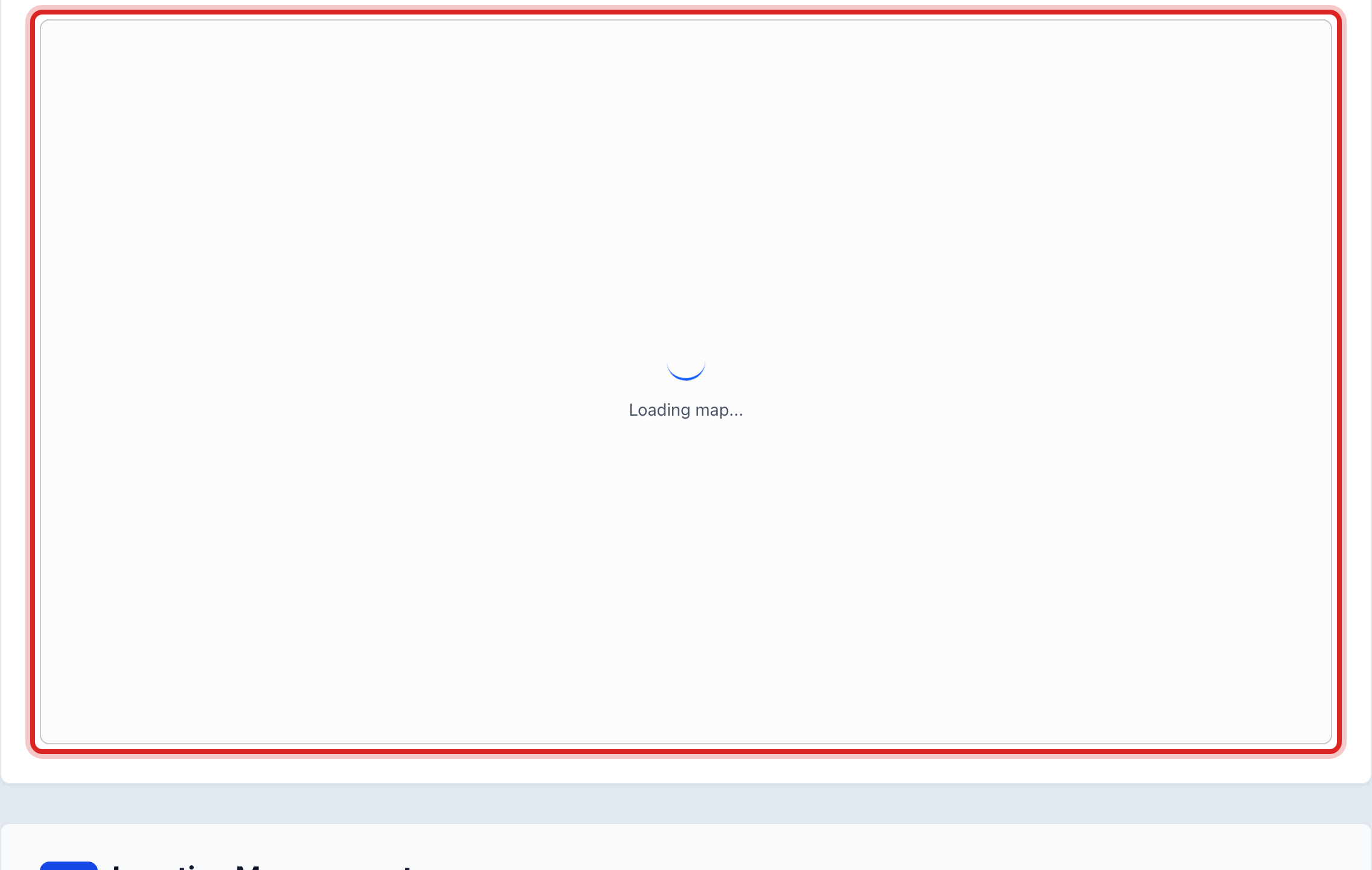
Scroll down to Location Overview Map. Your customers show as pins. Scroll to zoom in and drag to move, the same as any map on your phone.
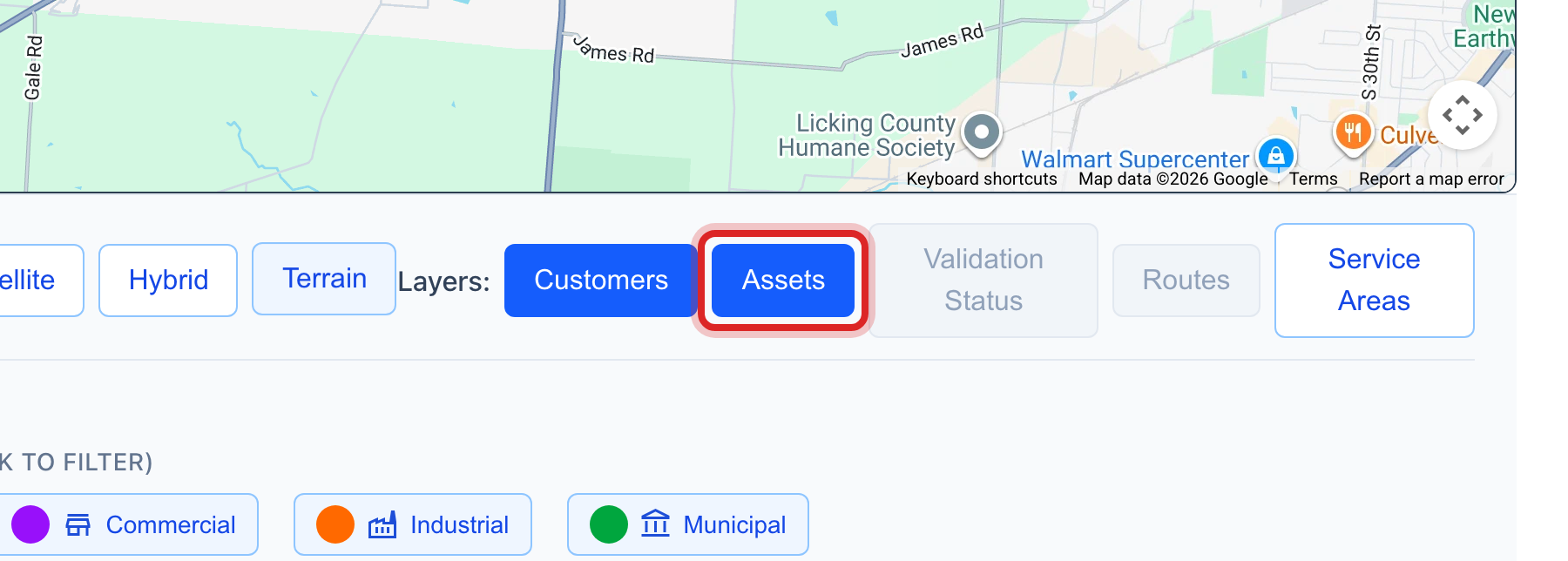
Under the map, next to Layers:, click Assets. The button turns blue and your equipment pins appear.
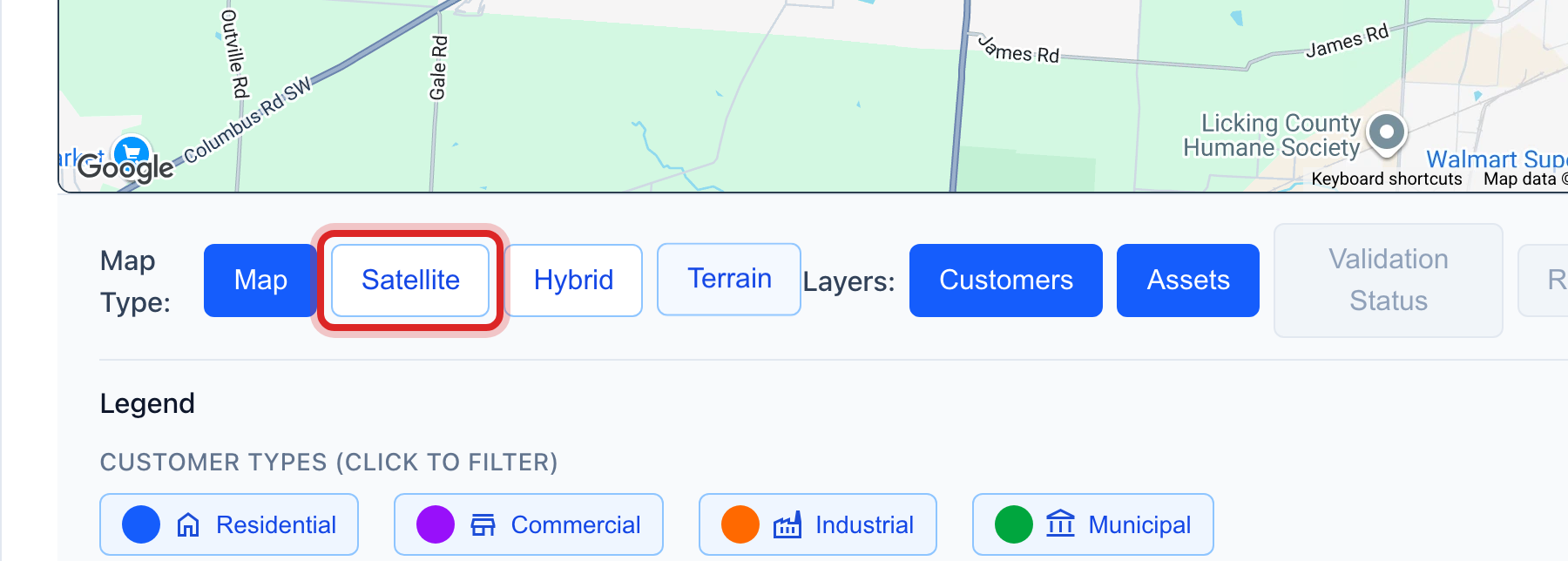
Next to Map Type:, click Satellite to see the real ground. Map takes you back to the street map.
Click a pin. A customer pin opens that account. An equipment pin opens that item under Asset Management, Inventory.
You are done when
The equipment pins are on the map, and the Legend under the map says what each color means.
If something looks different
The Assets button is faded. No piece of equipment has a map point yet. Lesson 3 under Asset Management shows how to add one.
The map is blank or still loading. Give it a few seconds. If it stays blank, your customers may not be placed on the map yet. Lesson 2 shows how.
You see a Gas assets button too. Gas lines and regulators have their own layer. Click it the same way.
You want to turn a layer off. Click the blue button again. It turns white and those pins go away.