
Appearance
5. Add a calendar item
When you need this: call the pump company Thursday. Meeting with the auditor at ten. A note to flush the dead end on Main Street. Put it on your calendar and it shows on your home page that morning, and on your phone if you set that up.
Steps
On the left side of the screen, click My Calendar.
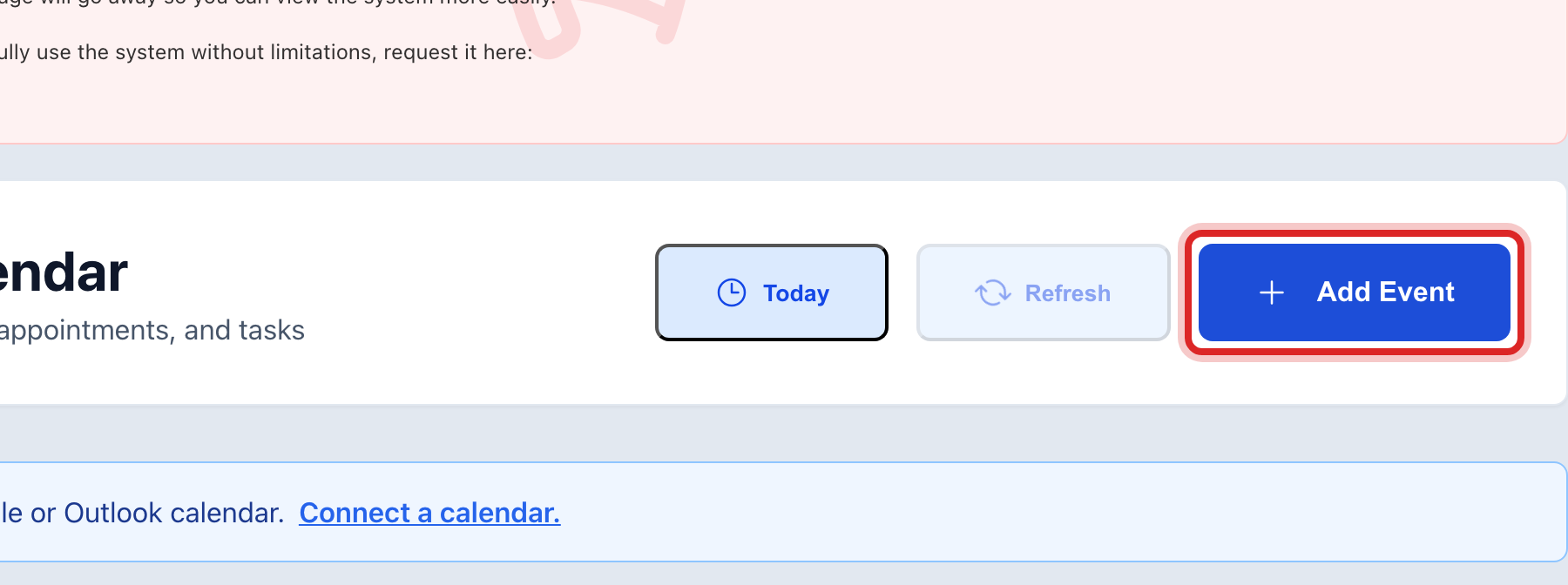
Click the blue Add Event button at the top.
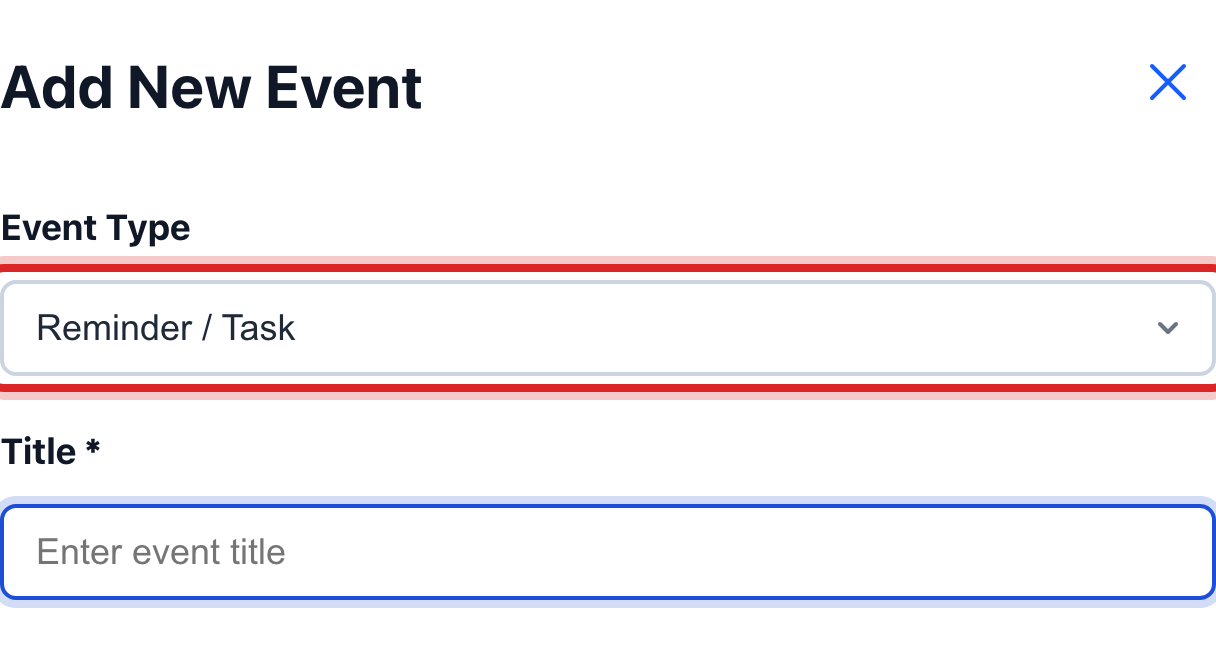
A window opens. The Event Type list is set to Reminder / Task. That is right for most things. For a meeting with a start and end time, pick Meeting (Single Day).
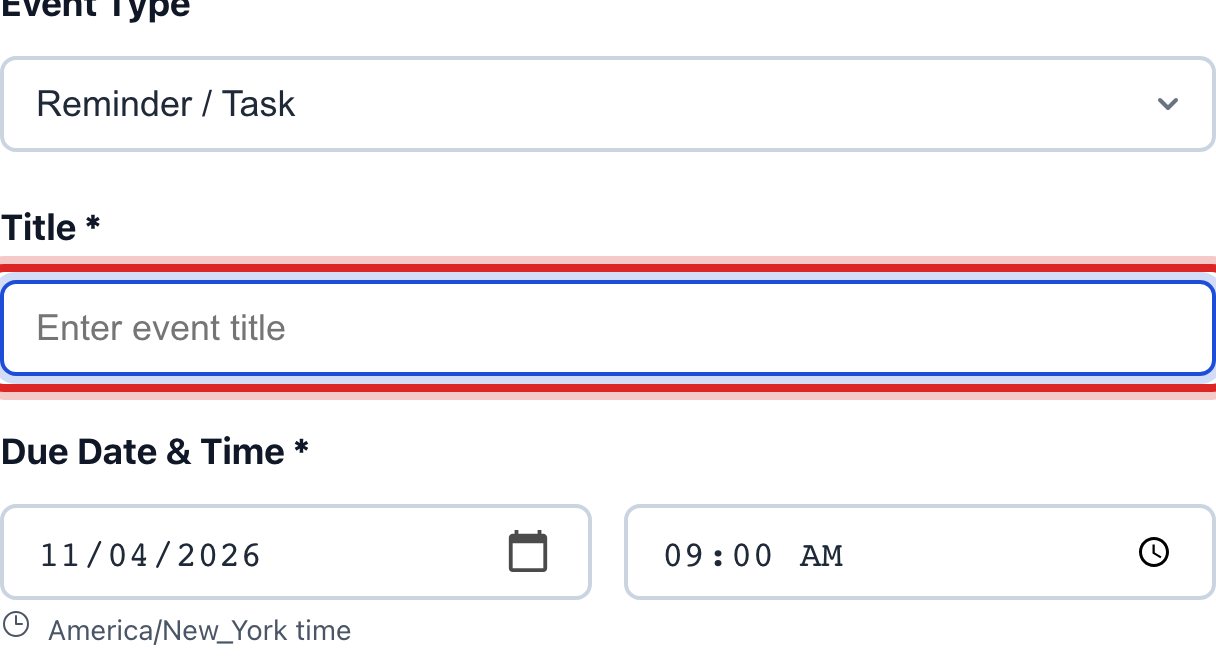
Click in the Title box. Type what it is, like "Call the pump company".
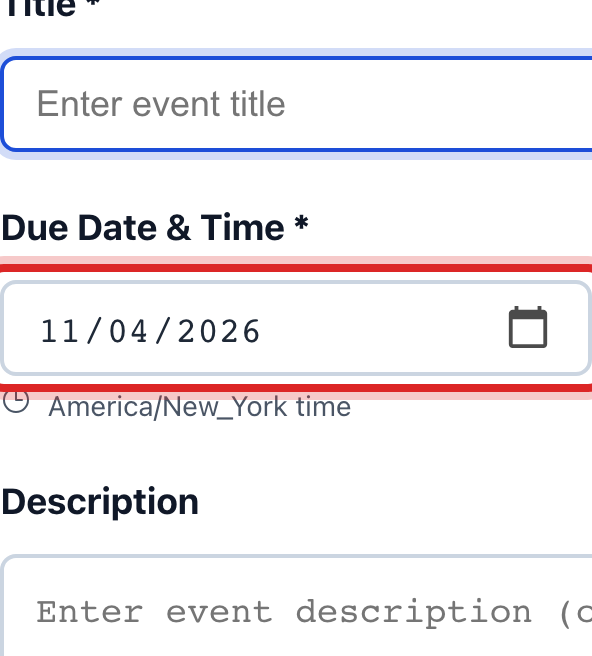
Under Due Date & Time, pick the day and the time.
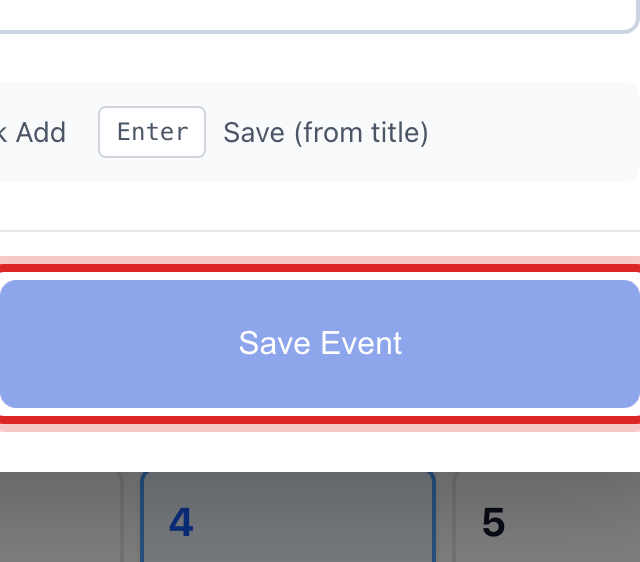
Click the blue Save Event button at the bottom.
Made a mistake? Click Undo on the green message that appears, or open Show me how at the top and pick Undo a mistake.
You are done when
The item shows on its day in the calendar. On that morning it also shows under Today's Schedule on your home page.
If something looks different
It happens every week. Pick Recurring Event in the Event Type list. Then pick how often under Repeat and when it ends under Ends.
It runs over several days. Pick Multi-Day Event and set the start and the end.
You want to change it. Click the item on the calendar, then Edit. To take it off, click Delete.
It is for the whole office, not just you. Add it under Settings, then Reminder Management, as Company Wide. Settings, lesson 8.
The Save Event button is faded. The title and the date are both needed.