
Appearance
1. Start your day on the home page
When you need this: every morning. The home page is built for a two minute read with your coffee. What is urgent, how the money looks, what is on your list, and what the state is waiting for. Read it top to bottom, then tick off the list as you go.
Steps
On the left side of the screen, click Dashboard. Your utility's name is at the top.
If there is a card called Immediate Attention at the top, read it first. Each line is something that cannot wait: a main break, an emergency work order, a deadline that passed. Lesson 3 shows what to do with one.
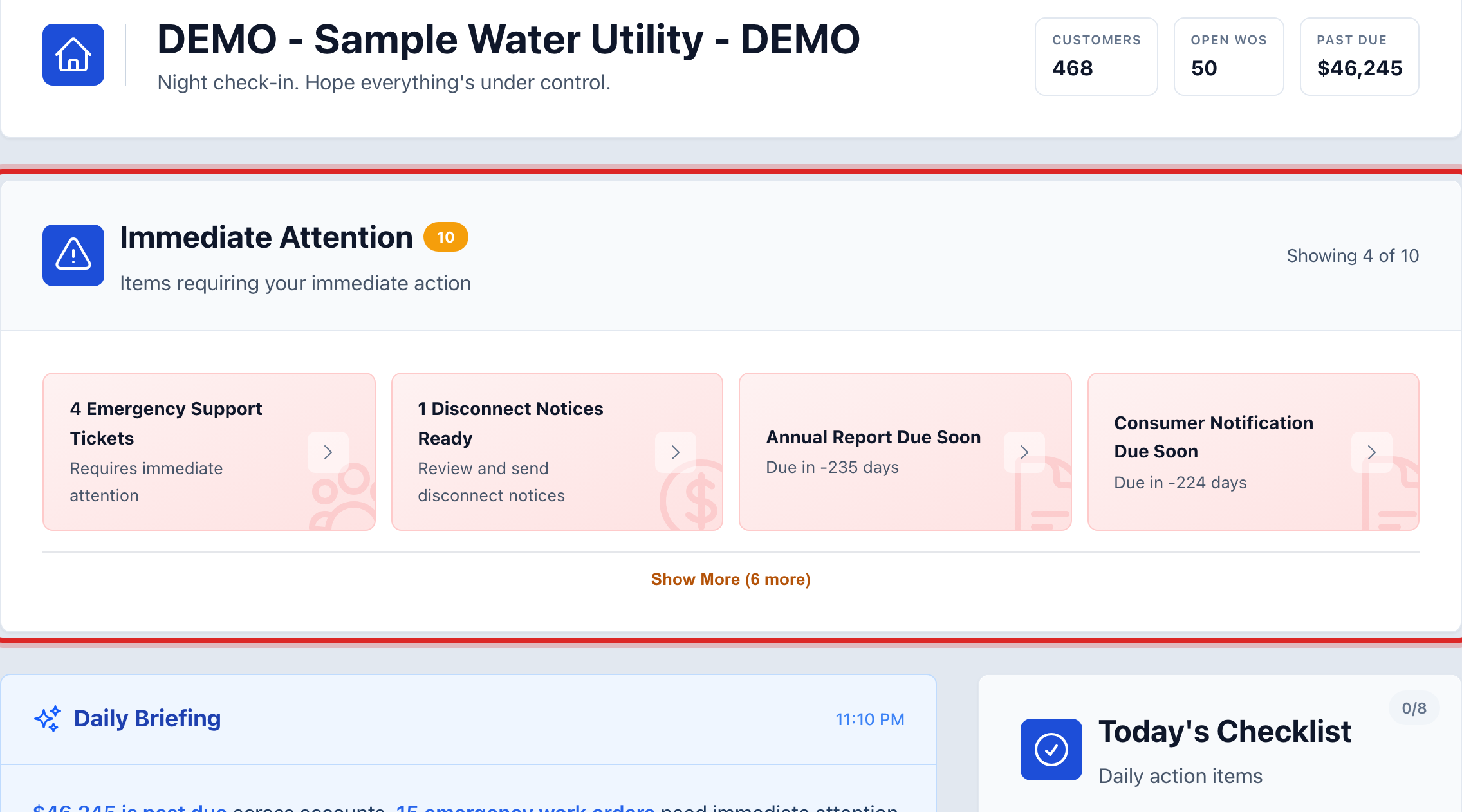
Read the Daily Briefing. It is a few plain sentences about your day, written fresh each morning.
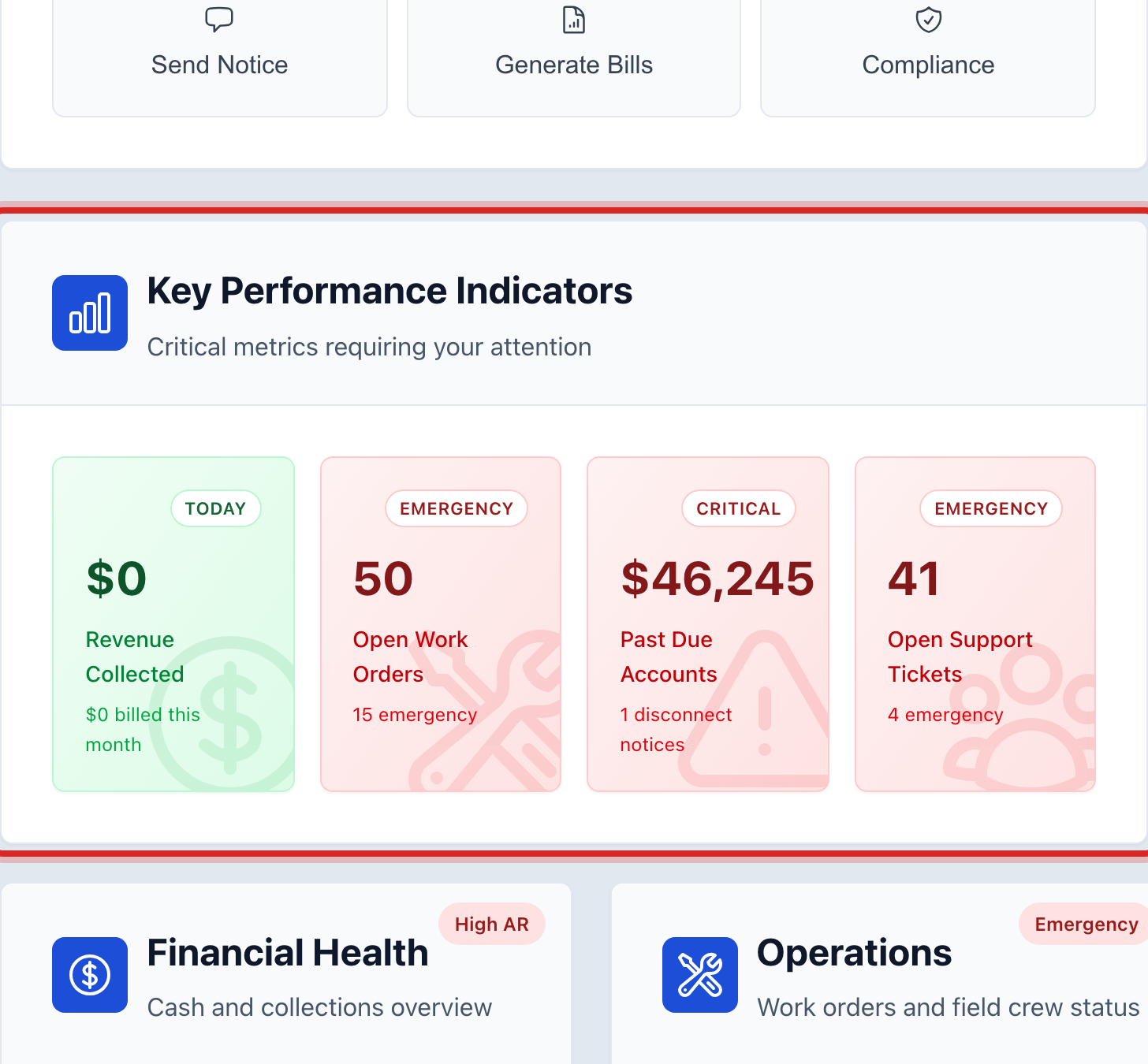
Look at Key Performance Indicators. Four big numbers: money collected today, open work orders, past due accounts and open support tickets. Click any one to go to its page. Red means look now.
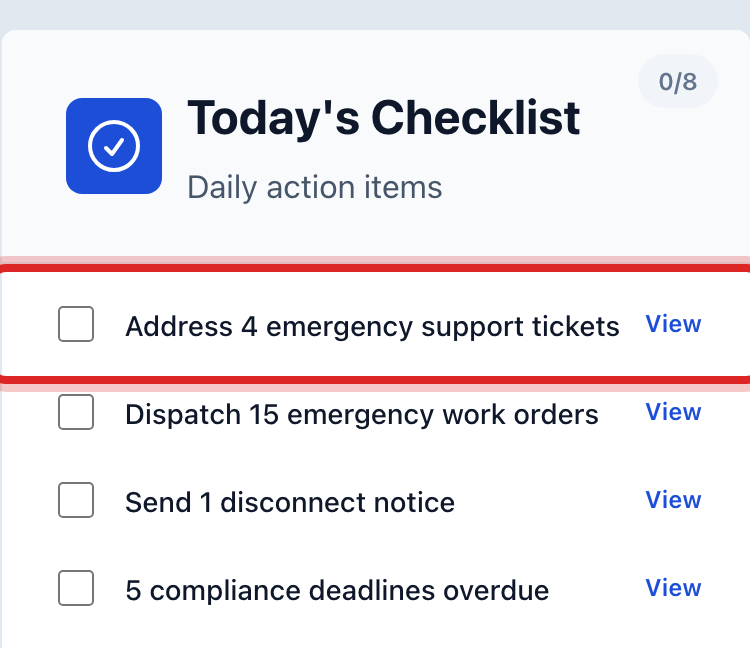
Work down Today's Checklist. Each line is a job for today, with a count. Click View on a line to go do it. When it is done, tick the box. The count at the top of the card goes up.
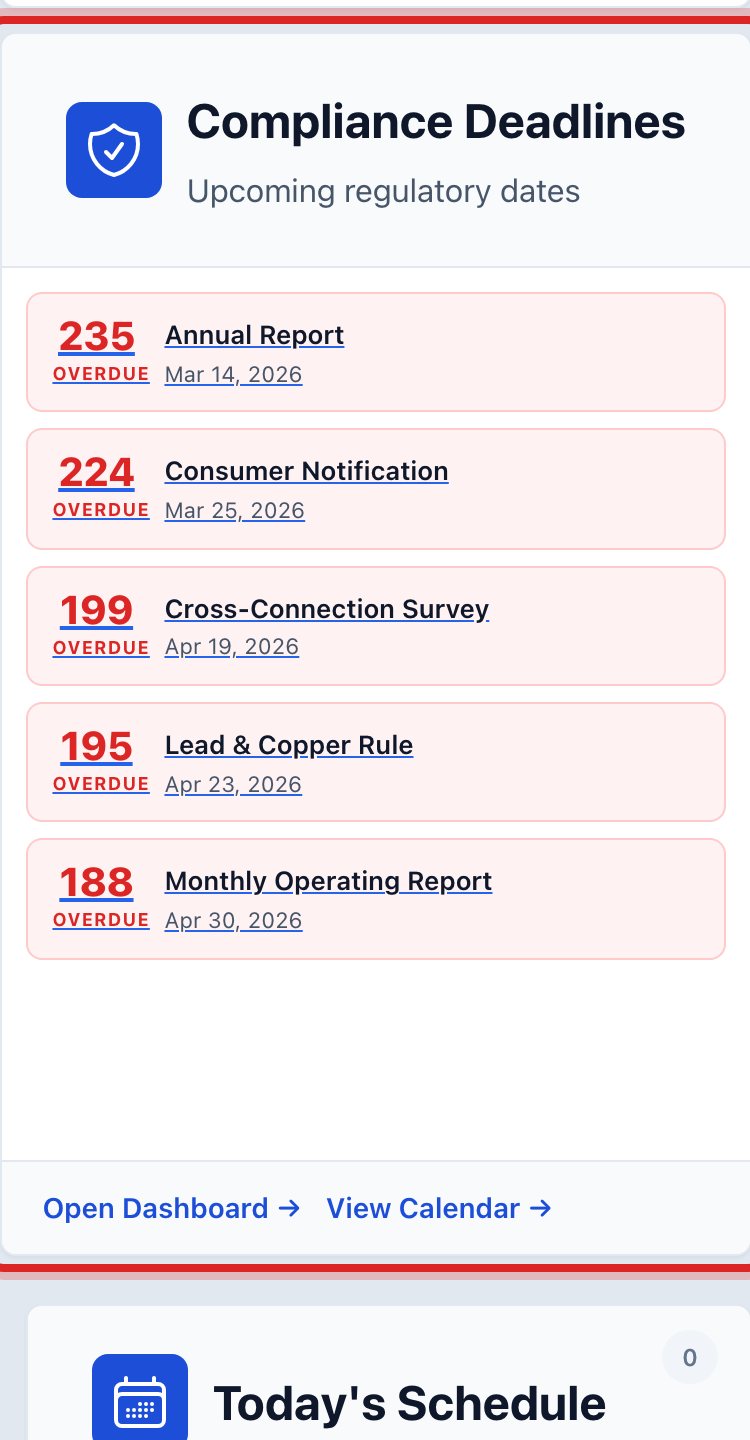
Check Compliance Deadlines. Each one shows how many days are left. Red means overdue.
Made a mistake? Click Undo on the green message that appears, or open Show me how at the top and pick Undo a mistake.
You are done when
You know what is urgent, what today holds and what is due. The checklist shows how many of today's items are ticked.
If something looks different
There is no Immediate Attention card. Nothing is urgent. The card only shows when there is something.
The checklist says there are no urgent items. Good. Read the rest of the page at your own pace.
Some numbers are missing or a yellow line says data could not load. Refresh the page. If it stays, tell your administrator.
You ticked a line by mistake. Click the box again to untick it.