
Appearance
3. Handle an item under Immediate Attention
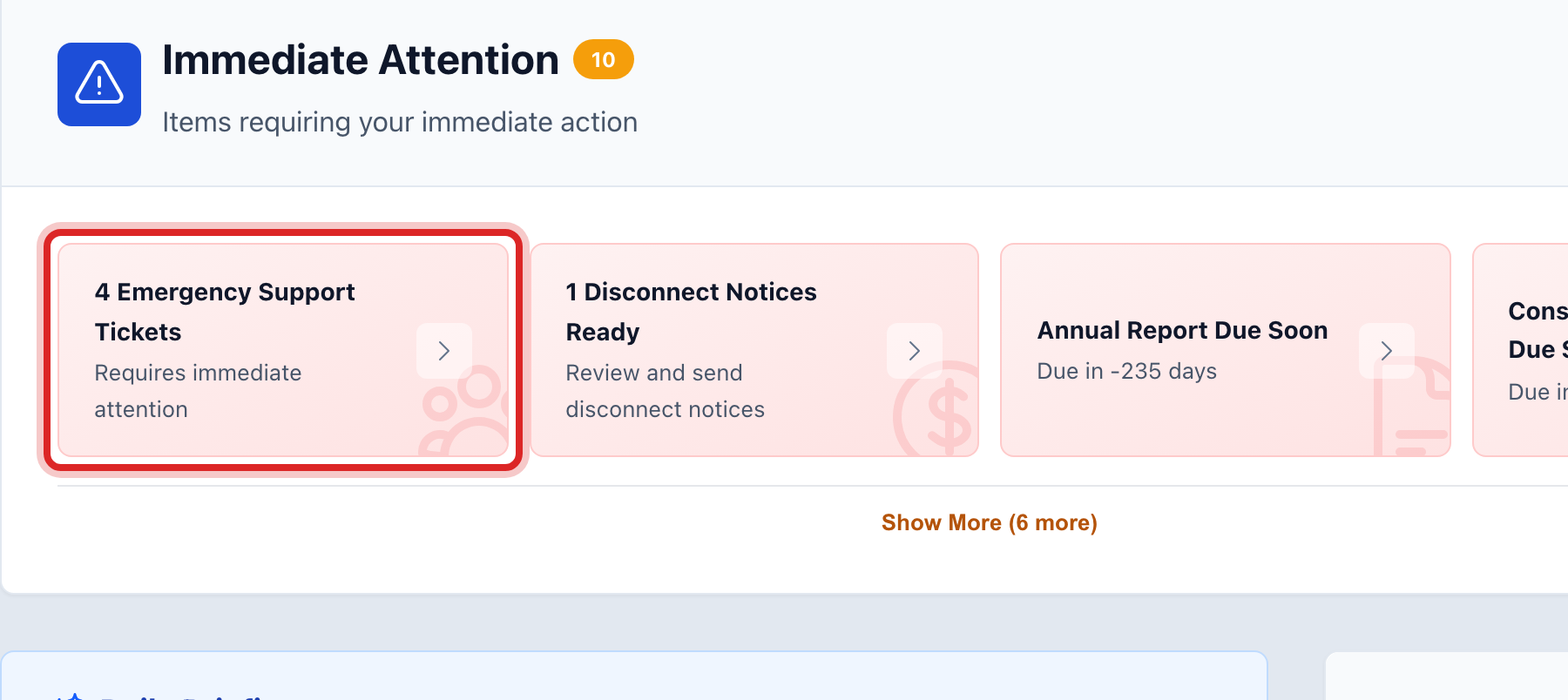
When you need this: a red or yellow line sits at the top of your home page. An emergency work order nobody has picked up. A state deadline that passed. A customer with no water. Each line is a door to the page where you fix it, and a way to tell the rest of the office you have it.
Steps
On the left side of the screen, click Dashboard. The Immediate Attention card is at the top when there is something in it.
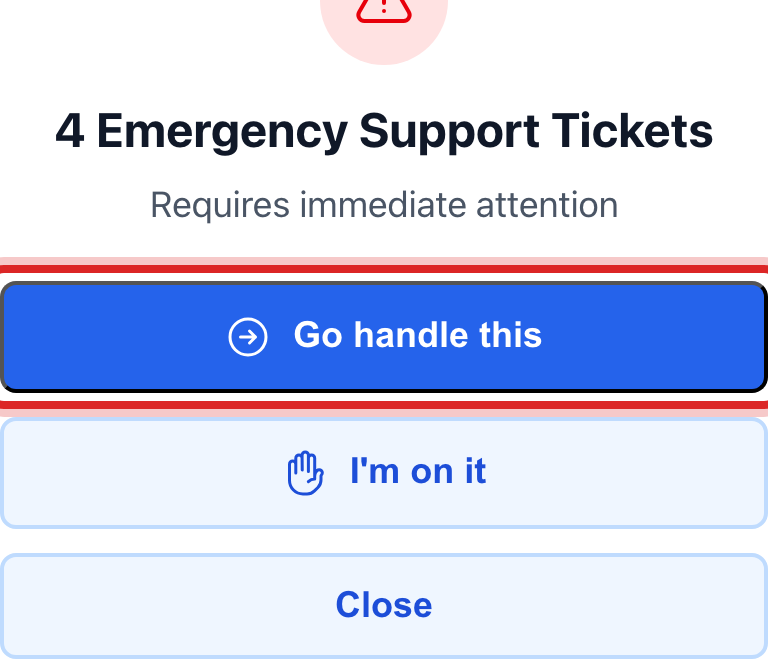
Click the line you are going to handle. A window opens with the details and a short list of buttons.
Click Go handle this. It takes you to the work order, the deadline or the account, where you do the work.
When the work is done there, the line drops off the home page on its own.
You are done when
You are on the page where the problem lives. When you come back to the home page, the line is gone or marked as being handled.
If something looks different
It is an emergency and you are taking it. Click I'm on it instead. The line stays, but now it reads Being handled by you, so nobody else drives out too.
It can wait until tomorrow. Click Remind me later, then In 1 hour, Tomorrow morning or In 3 days. It comes back then.
It is already done, or it is not real. Click Mark as done or Hide this, then confirm. The line goes away for everyone.
There are more than four lines. Click Show More at the bottom of the card. Start with the red ones.