
Appearance
4. See your day on My Calendar
When you need this: before you leave the office in the morning. Your calendar holds the work orders assigned to you, the meter reading routes, your reminders, office meetings and the state's deadlines. One page, one look, and you know your day.
Steps
On the left side of the screen, click My Calendar.
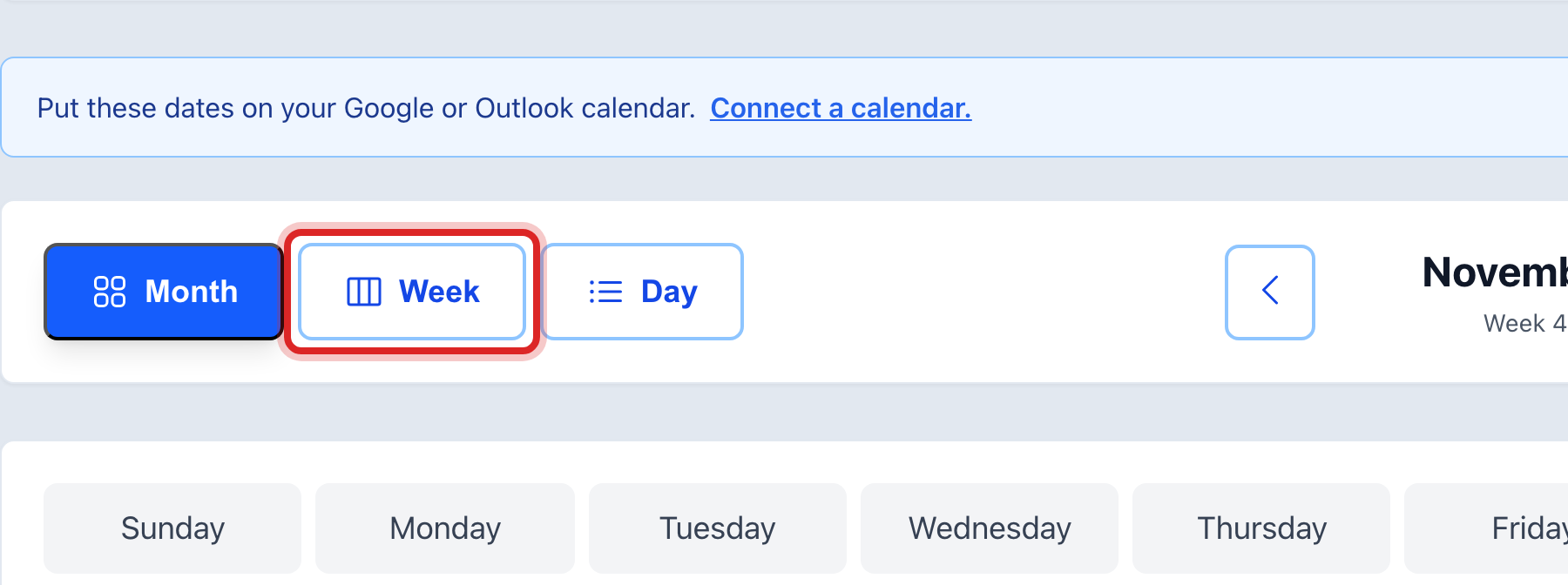
Click Month, Week or Day at the top to change how much you see. Week is a good one for planning.
Use the arrows to move forward or back. Click Today to come back to today.
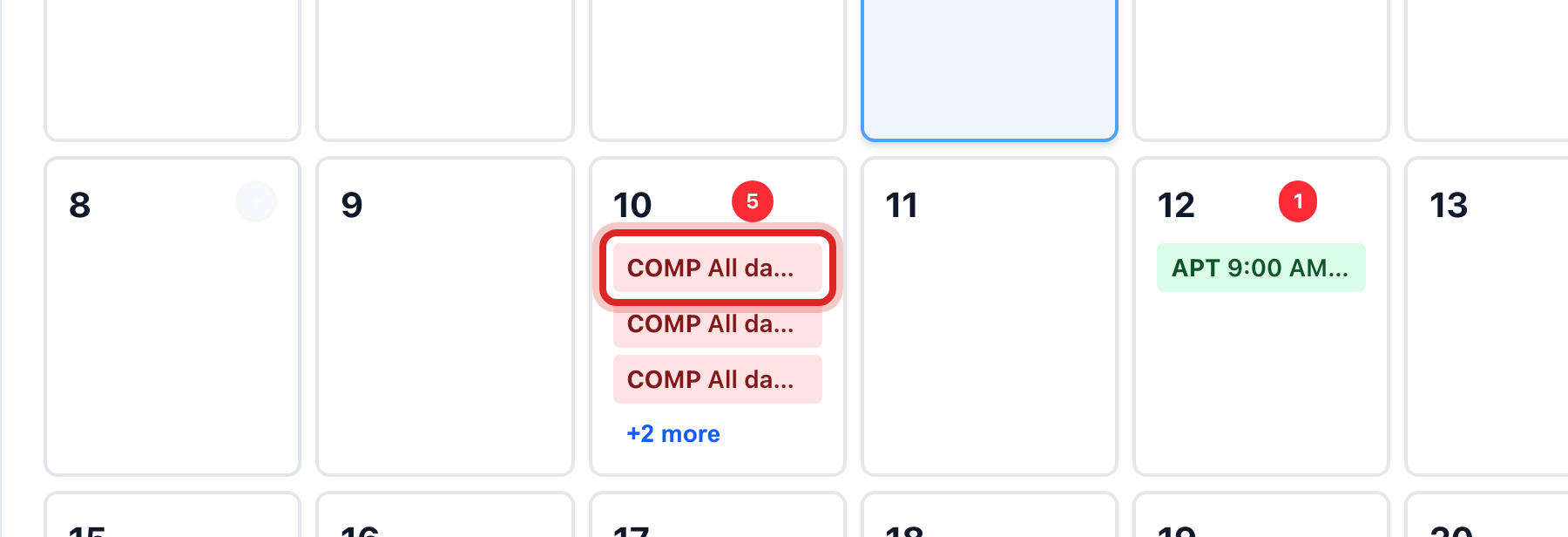
Each colored block is one item. Click one to open it.
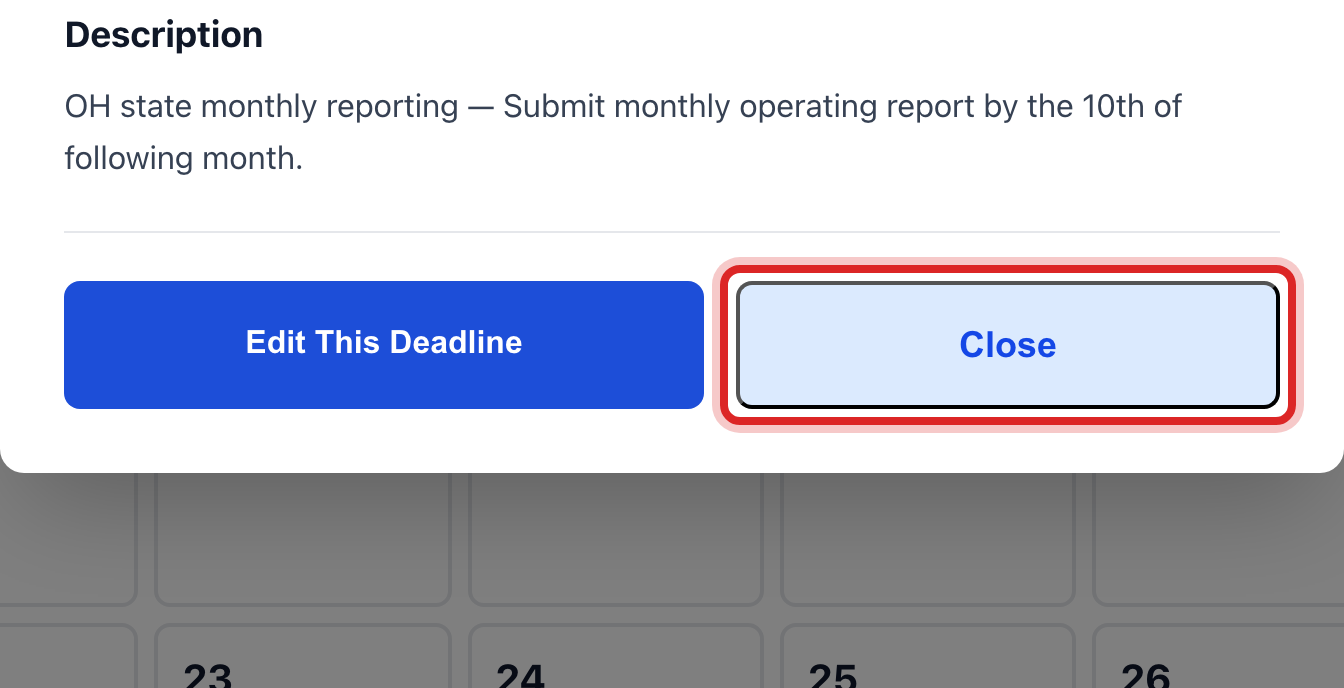
The window shows the time, the place and the details. Click View Details to go to the work order or the deadline itself. Or click Close.
You are done when
You can say what is on your plate today and where you have to be.
If something looks different
The calendar is empty. Nothing is assigned to you yet, and nobody has added a reminder. Lesson 5 shows how to add one.
A work order is on the calendar but it is not yours. Only your own are shown. Ask whoever assigns them.
A deadline shows that you do not handle. The state's deadlines show for everyone, so nothing slips. Click it and Edit This Deadline to see who owns it.
You want it on your phone. Lesson 6.