
Appearance
2. Use the quick actions
When you need this: a customer walks up to pay. The phone rings with a leak. You want to start the job without hunting through the left side. The Quick Actions card is six buttons for the six jobs you do most. One click and you are on the right page.
Steps
On the left side of the screen, click Dashboard.
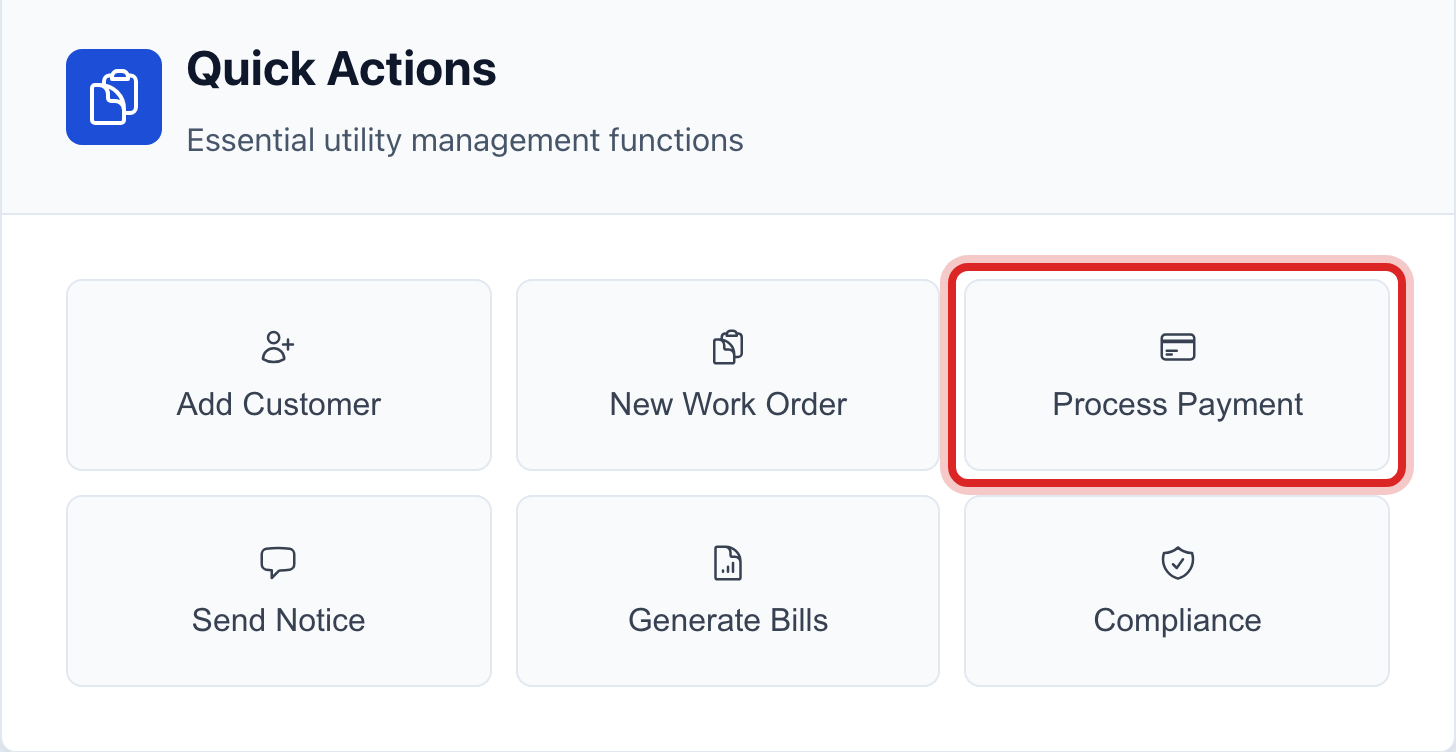
Find the Quick Actions card near the top. The buttons are Add Customer, New Work Order, Process Payment, Send Notice, Generate Bills and Compliance.
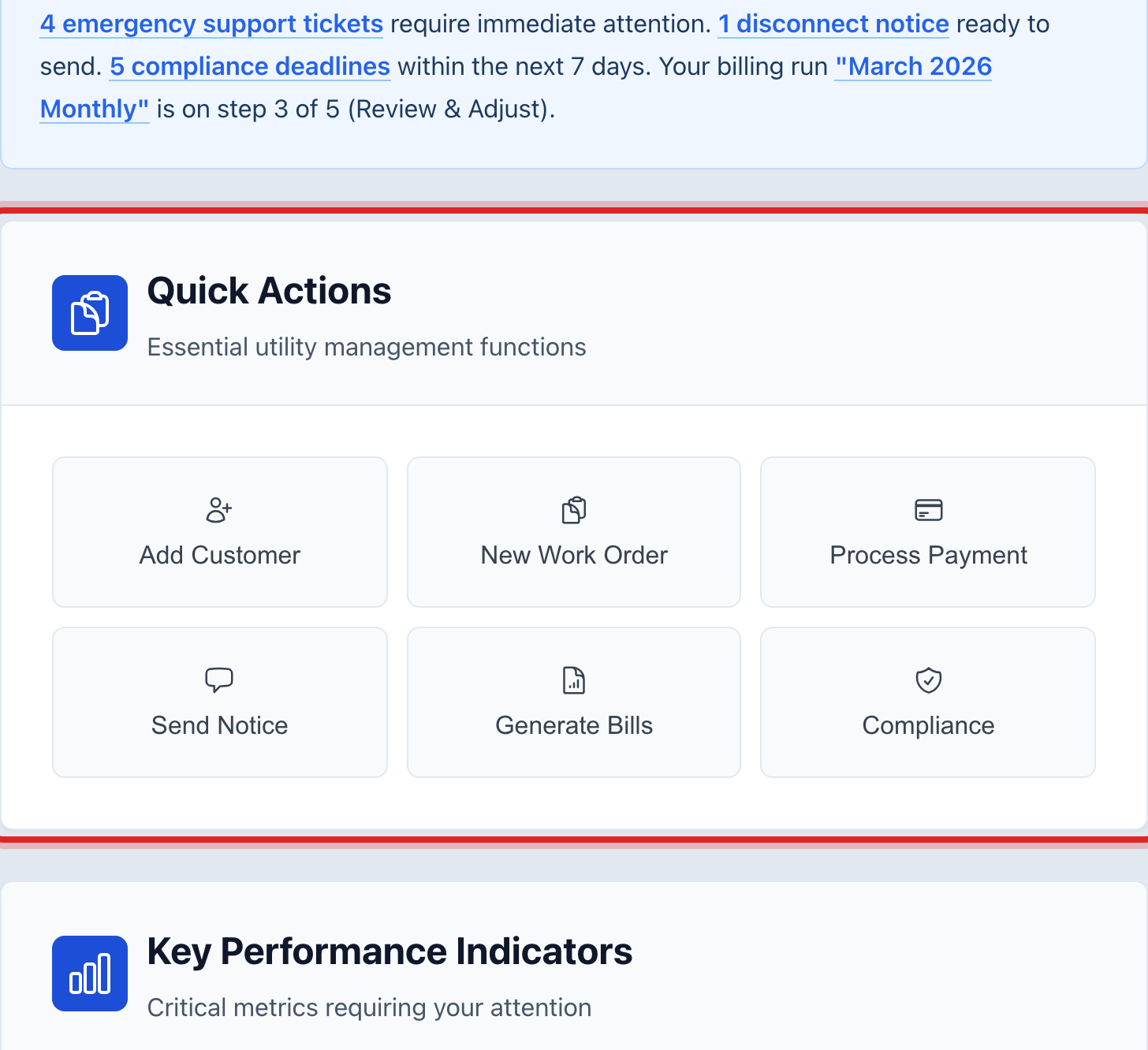
A customer is at the counter. Click Process Payment. The payment page opens with the search box ready.
Take the payment the way quick start page 3 shows. When you are done, click Dashboard on the left to come back home.
You are done when
You went from the home page to the payment page in one click, and back in one click.
If something looks different
A button is missing. Buttons show only for the parts of Utilops your role can open. A meter reader does not see Process Payment.
You want a button that is not there. Click Send us an idea under Show me how at the top and tell us which job you want on the card.
You clicked the wrong one. Nothing happened yet. Click Dashboard on the left to come back.